
Micro Summary: Microsoft Teams is the digital core of your business. It’s where you chat, make video calls and use all of your important 365 tools. But even the finest technology has “bad days.” When Teams has issues, it slows things down and interrupts the flow of conversation. This post helps you deal with common issues and troubleshooting Microsoft Teams problems. Our technical team can also set up and manage Microsoft solutions, including Teams, so your business runs smoothly.
Key Insights:
Microsoft Teams is popular, but it can be slow or have network issues. Sign-in errors, program freezing, audio or video issues and syncing delays can be fixed with these Microsoft Teams troubleshooting instructions.
What We are Walking Through:
- App Performance: Easy methods to resolve frustrating freezes, sluggish startup times and persistent sign-in cycles.
- Flawless Audio: Resolving those common “Is my mic on?” issues and other voice quality glitches.
- Seamless Meetings: Ensuring your camera, screen projection and joining links function reliably.
- Expert Support: Technical advice for IT administrators and rapid solutions for mobile usage.
- Consistent Updates: Fixing overlooked alerts and file transfer mistakes that disrupt your workflow.
TECHOM Systems Supports You Fully- We offer more than just immediate troubleshooting Microsoft Teams. Our consultants and tech Microsoft experts optimize your Microsoft 365 setup from the start. From reliable phone service to ongoing support, we ensure smooth teamwork and clear conversations.
Microsoft Teams Troubleshooting
Frequent Microsoft Teams Difficulties
Speed and network outages can plague Microsoft Teams, a popular collaboration tool. Troubleshooting Microsoft Teams issues like sign-in errors, program freezes, audio or video issues and syncing delays, this guide covers common app problems.
1.1 Troubleshooting Microsoft Teams Malfunctions
Should Microsoft Teams fail to launch, repeatedly close unexpectedly, or become entirely unresponsive, these diagnostic procedures for Microsoft Teams may assist in fixing the problem:
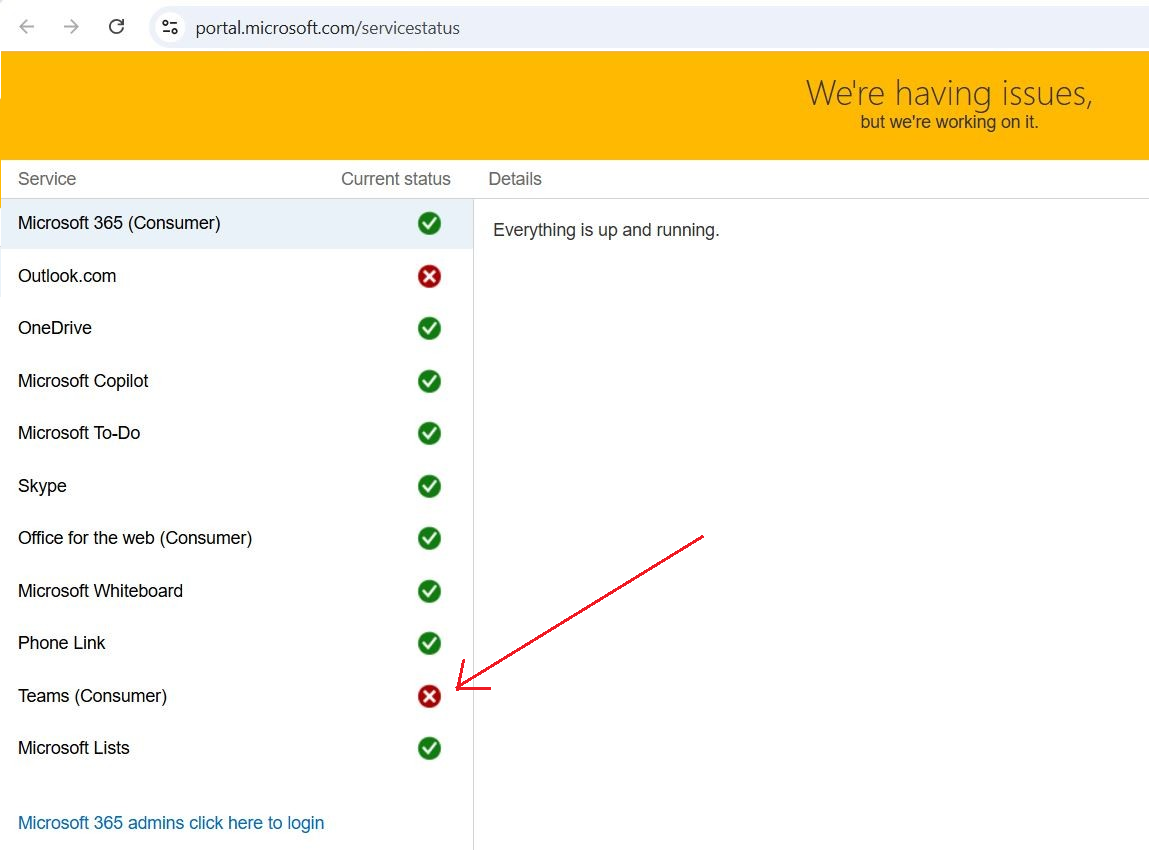
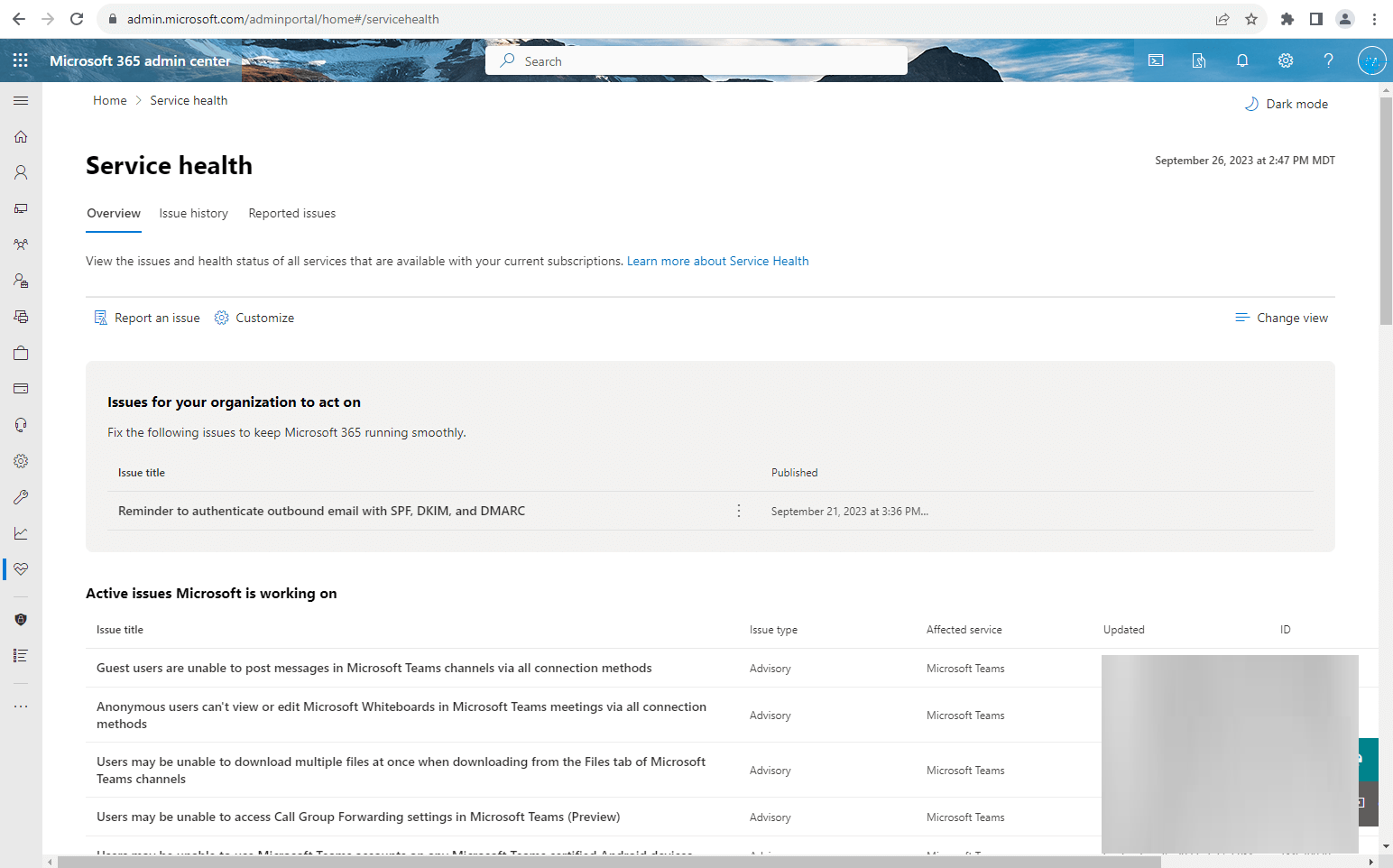
Step 1 – Verify Microsoft Teams Service Status
Occasionally, service disruptions affecting Microsoft Teams can impede access. Consult Down detector or Microsoft’s official Service Status portal to ascertain if Teams is presently experiencing an outage.
Step 2 – Restart Teams or Your Machine
Rebooting the Teams application or your entire device can often correct transient software or application hitches preventing Microsoft Teams from functioning as intended.
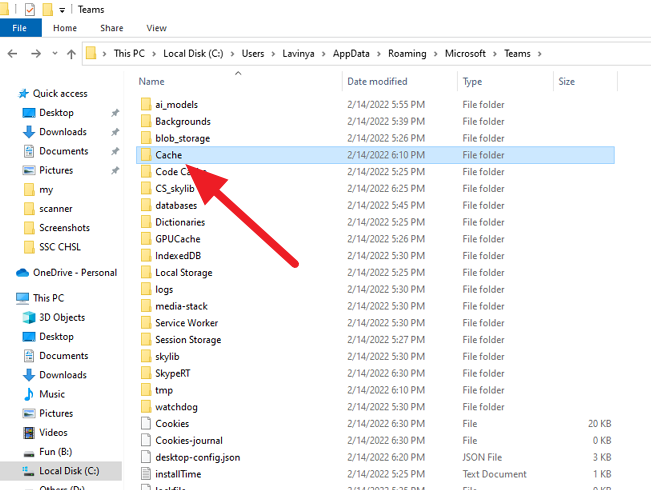
Step 3 – Clear the Microsoft Teams Cache
Damaged cache data frequently underlies problems with Microsoft Teams. To clear the Teams cache:
- Ensure Microsoft Teams is completely shut down
- Navigate to C:\Users\YourUsername\AppData\Roaming\Microsoft\Teams and remove every item within that directory
- Relaunch Microsoft Teams
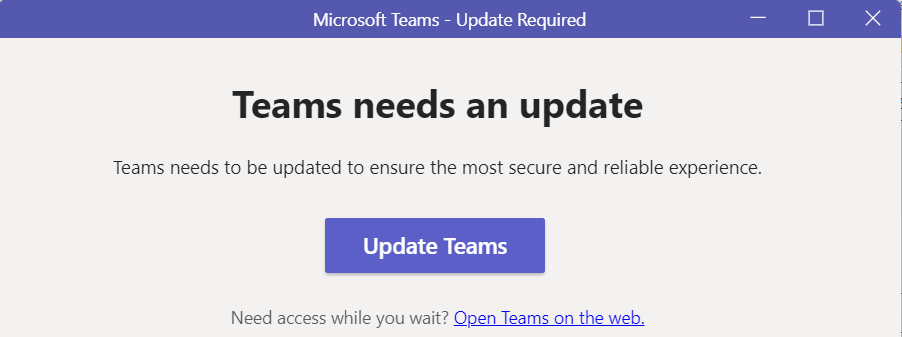
Step 4 – Ensure Microsoft Teams is updated
Operating with an older Microsoft Teams version can cause bugs and slow performance. Tap your profile picture in Teams, select Check for updates and install the latest patches to keep Teams running smoothly.
1.2 Microsoft Teams Running Slowly or Experiencing Latency
Should Microsoft Teams exhibit sluggishness, frequent freezing, or noticeable delays in response, follow these troubleshooting procedures for Microsoft Teams to enhance its speed and responsiveness:
Step 1 – Shut Down Unwanted Programs Running in the Background
Having numerous applications active concurrently can consume system resources, resulting in Microsoft Teams slowing down. Terminate non-critical software to liberate memory and CPU capacity.
Step 2 – Verify Internet Connection Speed and Network Reliability
A sluggish or erratic internet link is a frequent culprit behind poor Microsoft Teams operation. Conduct an online benchmark test to assess your connection quality. If necessary, reboot your modem/router or utilize a direct cable connection for superior stability.
Step 3 – Disable GPU Hardware Acceleration within Microsoft Teams
For specific system configurations, the GPU hardware acceleration feature might negatively affect Microsoft Teams performance. To disable this:
- Open Microsoft Teams and select your user avatar
- Navigate to Settings > General
- Tick the box Disable GPU hardware acceleration
- Relaunch Microsoft Teams for modifications to take effect
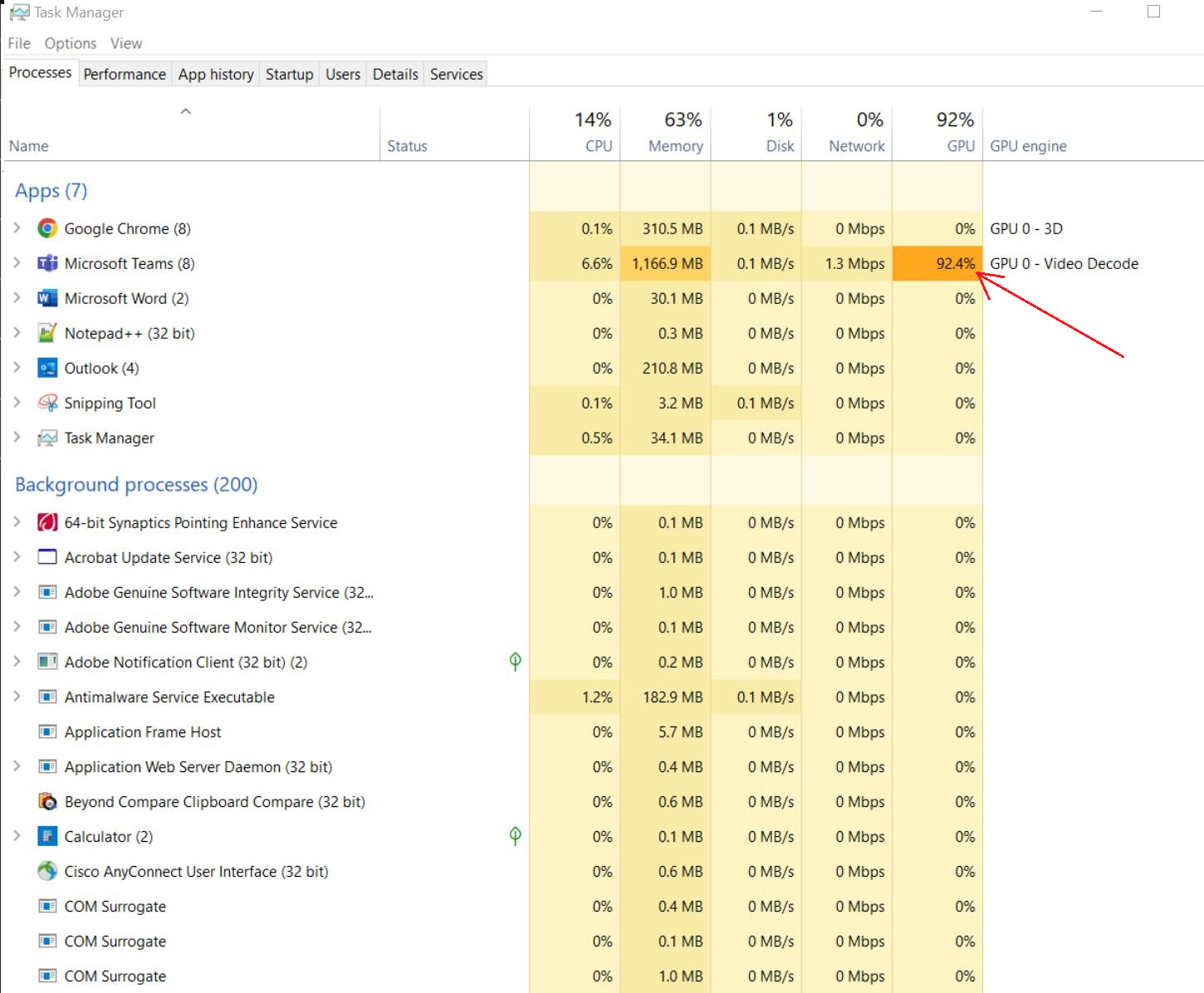
Implementing these actions assists in modifying latency and boosting the overall performance of Microsoft Teams.
Unable to Access Microsoft Teams
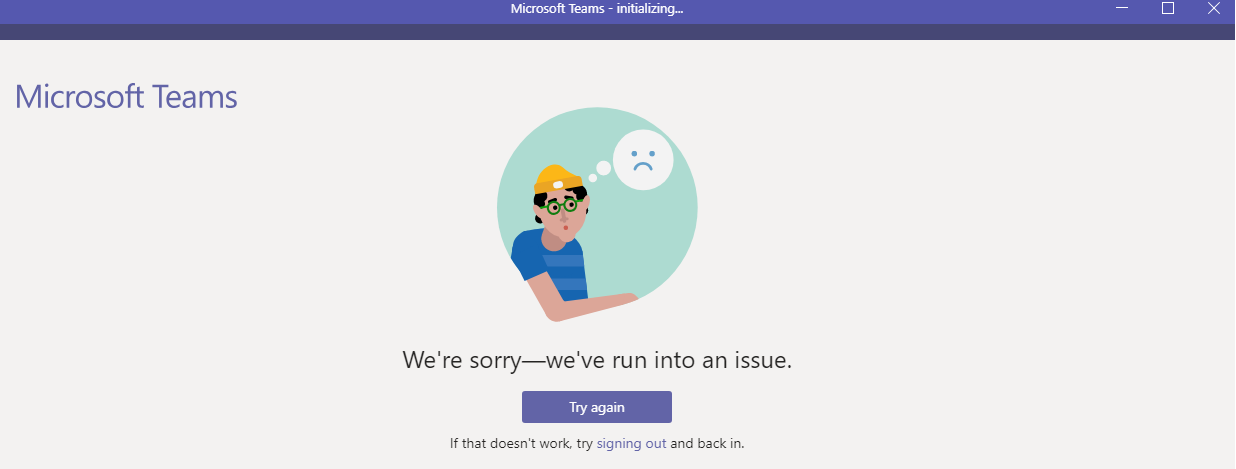
Should you encounter difficulties signing into Microsoft Teams or receive authentication errors, follow this troubleshooting guide for Microsoft Teams to sort out the problem:
Step 1 – Confirm Microsoft Teams login details
Carefully re-enter the correct email address and secret phrase. If you are uncertain, attempt to log in to Microsoft 365 initially to validate that your credentials are correct.
Step 2 – Review Microsoft Teams account rights and entitlements
Microsoft Teams requires adequate authorizations and an active subscription for employment or education accounts. Ask your IT manager if Microsoft Teams is activated. Microsoft’s account issue resolution instructions are available.
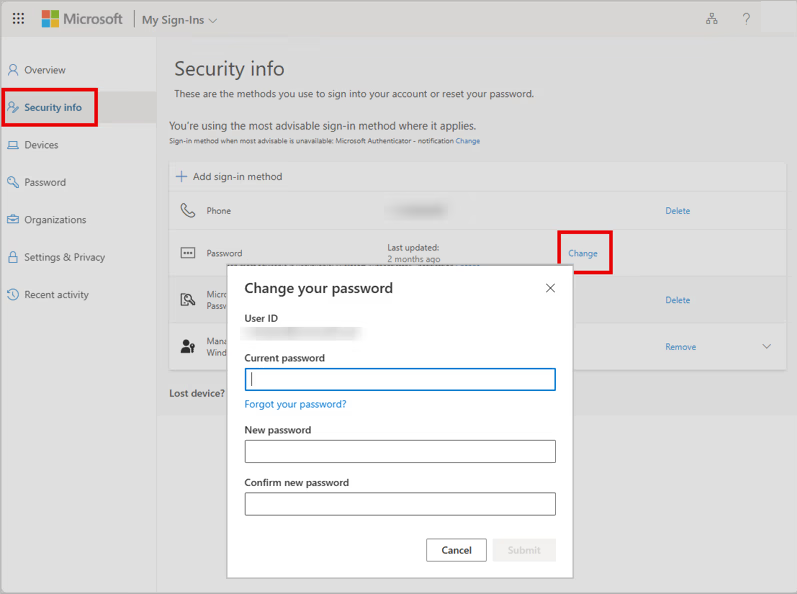
Step 3 – Renew your Microsoft account password
If the problem seems linked to the password, update it via the Microsoft account portal or request that IT support aids in a password reset. This frequently fixes Microsoft Teams access problems right away.
Did You Know?
- Microsoft Teams processes over 270 million meeting minutes daily, highlighting the importance of reliable performance in professional exchanges.
- The smooth integration of Teams with OneDrive, SharePoint and Microsoft 365 applications suggests that many “Teams hiccups” stem from access rights or cloud synchronization.
- Activating noise cancellation in Teams can improve call audio quality by up to 70% by reducing ambient sounds like keyboard strokes, air conditioning units and general conversation.
- Purging your Teams cache periodically can fix login, document sharing and alert issues.
2. Voice and Telephony Issue Resolution
The Teams app lets users make and take calls, simplifying communication. However, audio issues, interrupted calls and inability to make or answer calls can hinder professional interactions. Fix common calling issues and restore reliable voice calls with these Microsoft Teams troubleshooting steps.
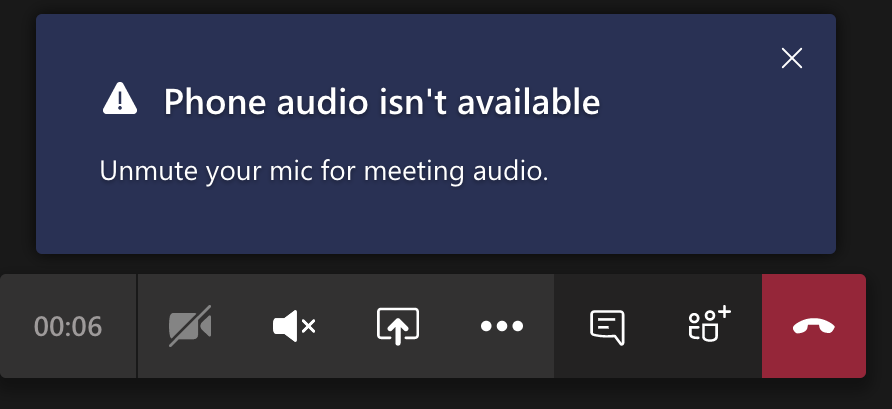
2.1 No Audio or Low Call Quality in Microsoft Teams
Should you be unable to hear others or experience unclear audio during a Teams conversation, please follow these voice troubleshooting measures for Microsoft Teams:
Step 1 – Verify Headset, Speaker and Microphone Linkages
Confirm that your headset, speakers, or microphone are properly plugged in and designated as the primary audio output/input device. For Bluetooth gear, ensure it’s correctly paired and adequately charged.
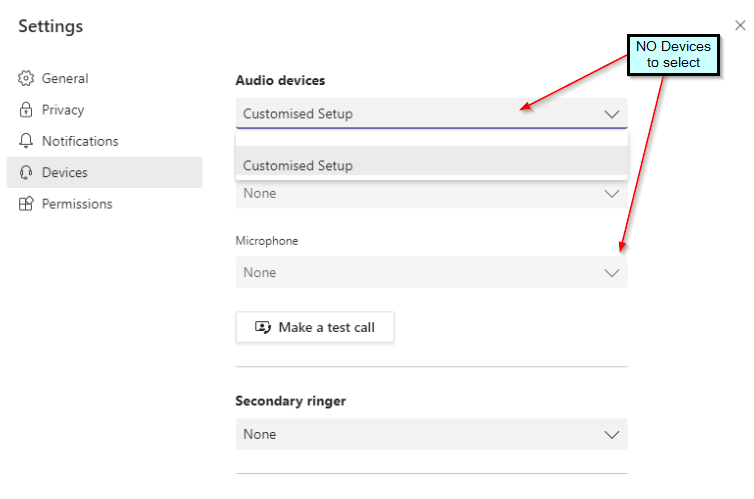
Step 2 – Examine Audio Configuration within Microsoft Teams
Launch Microsoft Teams and navigate to Settings > Devices. Double-check that the appropriate microphone, speaker and headset are chosen. Utilize the test call feature to confirm proper audio operation.
Step 3 – Select a Hardwired Network Link
Erratic Wi-Fi signals can lead to delays, echo, or distortion in Microsoft Teams audio. Connecting via a physical Ethernet cable frequently enhances call performance and minimizes disruptions.
Step 4 – Relaunch Microsoft Teams or Swap Audio Stuff
Restarting Microsoft Teams constantly fixes audio glitches. Replace the headset or microphone if the problem persists to find the cause.
2.2 Interrupted Calls or Unidirectional Audio in Microsoft Teams
If your Microsoft Teams calls frequently disconnect or have one-way audio issues, try these troubleshooting steps:
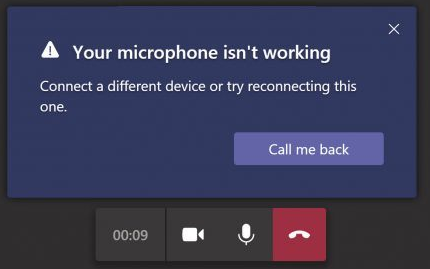
Step 1 – Verify network capacity and connection consistency
Low internet bandwidth often drops Microsoft Teams calls. Check your internet speed and make sure your network meets Microsoft Teams voice and video requirements.
Step 2 – Verify the operation of your audio peripherals
Check your microphone and speakers in Microsoft Teams > Preferences > Audio Devices if others cannot hear you. If the issue persists, try another headset, input device, or audio jack.
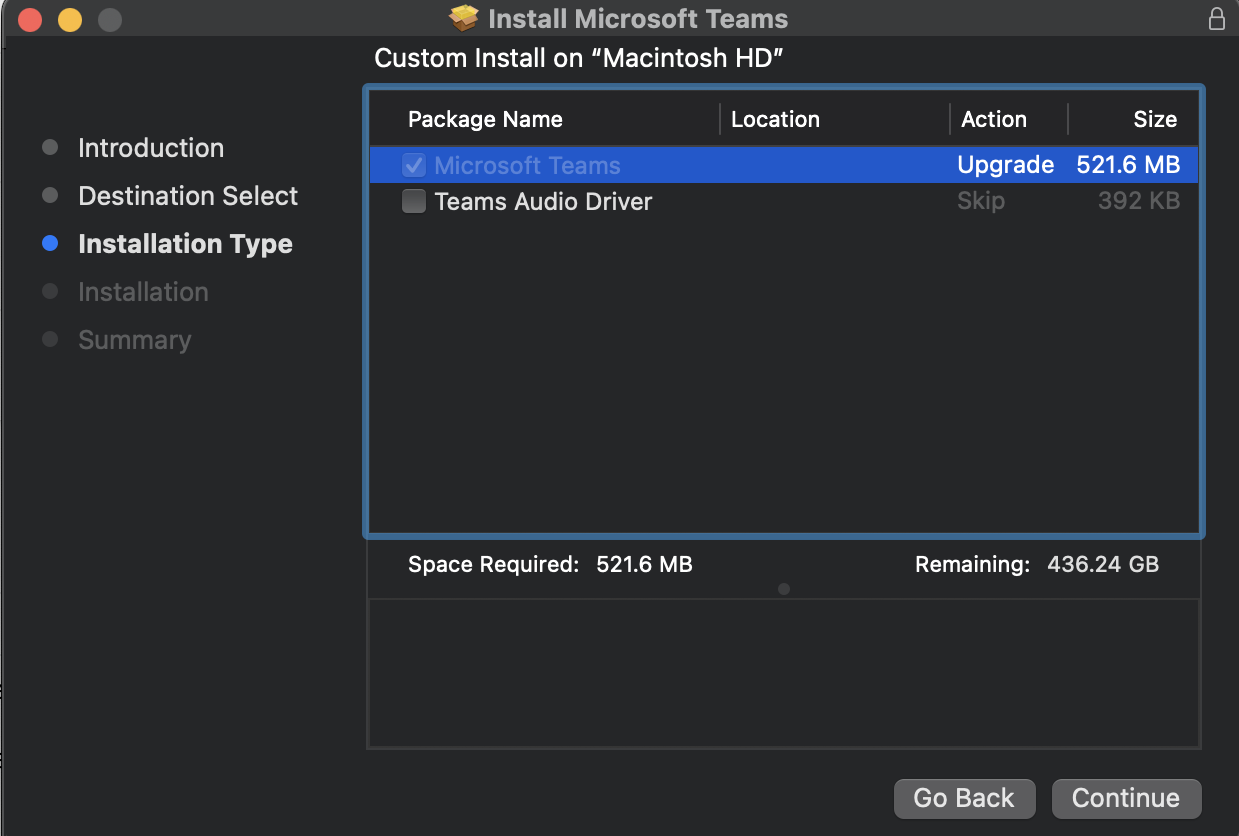
Step 3 – Install the latest audio drivers and hardware software
Outdated sound drivers or peripheral firmware can cause Microsoft Teams audio issues. Update your microphone, headset and sound adapter drivers in Windows Device Manager or on the product manufacturer’s website.
These steps usually fix most Microsoft Teams voice and call issues, ensuring reliable communication. If problems persist, contact technical support or Microsoft Teams support for more in-depth diagnostics.
Facing issues with Microsoft Teams, Outlook, or other Microsoft solutions? Submit your details below and get the support you need to stay connected and productive

A Quick Tip for Your Teams Meetings-
Ready and engaged are key to smooth Microsoft Teams meetings, not just problem-solving. You should have a clear agenda, participants know their roles and interactive features like screen sharing or breakout rooms set up before your next session.
For more expert tips, check out our other blog: Best Practices for Microsoft Teams Meetings
3. Meetings and User Experience Issues in Microsoft Teams
Audio, video and screen-sharing issues can slow Microsoft Teams meetings. Improve meeting experience with Microsoft Teams troubleshooting.
3.1 The camera doesn’t work in Microsoft Teams meetings
If your camera isn’t working during a Microsoft Teams meeting, try these steps to fix the problem:
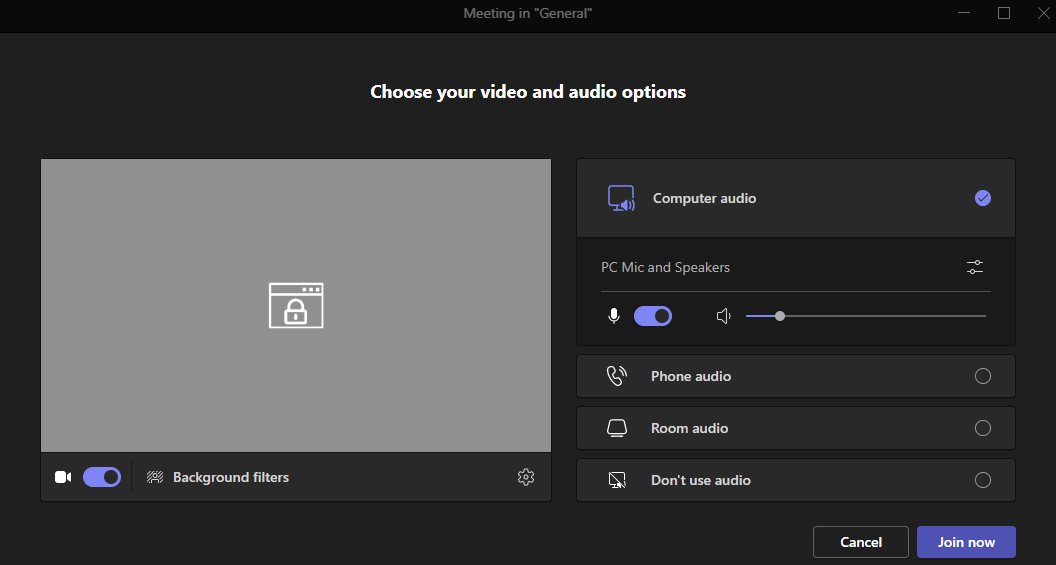
Step 1: Make sure the camera is connected and the app is open.
The camera should be plugged in and not in use by another program. Check your device’s settings to enable its camera. External webcam cables should be securely plugged. Quit Skype and Zoom, which may use the camera.
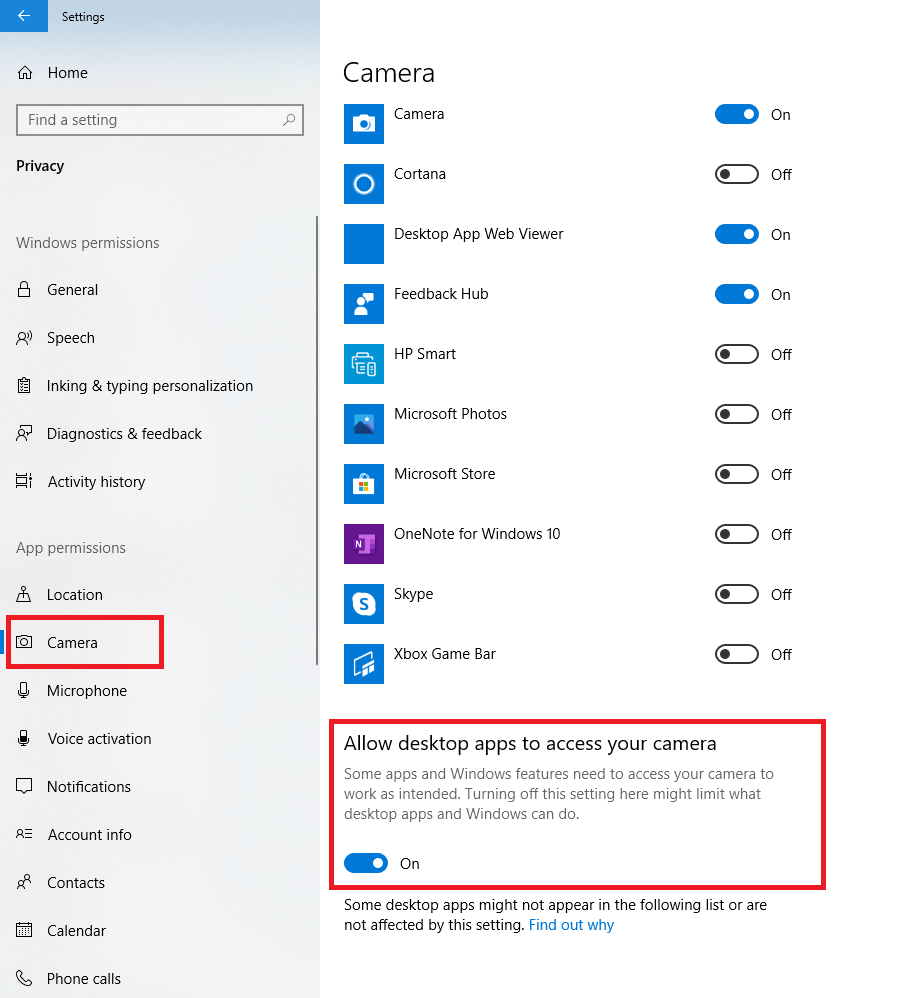
Step 2 – Review camera permissions in Windows and Microsoft Teams
Windows privacy settings can block camera access.
- Go to Windows Settings > Privacy & security > Camera and enable Let apps access your camera
- In Microsoft Teams, navigate to Settings > Devices and select the correct camera from the list
Step 3 – Use a stable network connection
In Microsoft Teams meetings, poor Wi-Fi can affect video. Switching to wired Ethernet improves video stability.
Step 4 – Restart Microsoft Teams and test the camera
Close and reopen Teams. Try the Windows Camera app if the camera still doesn’t work to see if it’s a device issue or Microsoft Teams-specific.
3.2 Screen Sharing Issues in Microsoft Teams
If screen sharing is not working during a Microsoft Teams meeting, try these Microsoft Teams troubleshooting steps:
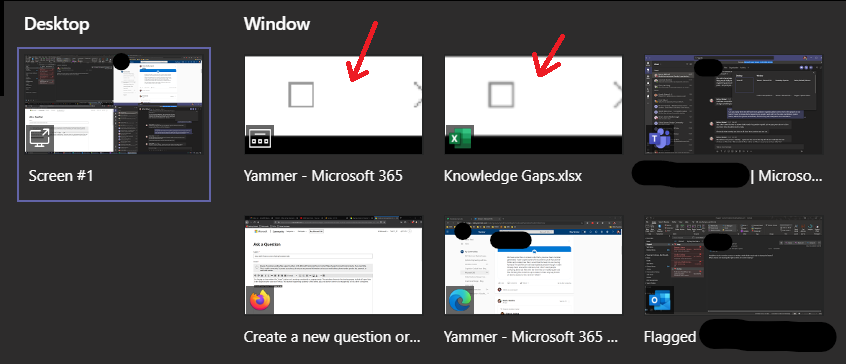
Step 1 – Select the correct screen or window to share
When clicking Share Screen in Microsoft Teams, make sure the correct desktop, window, or application is selected. If the wrong screen appears, stop sharing and try again.
Step 2 – Check meeting screen-sharing permissions
Meeting organizers can restrict screen sharing. Ask the organizer to enable screensharing in Meeting Options.
Step 3 – Try different screen-sharing options in Microsoft Teams
Microsoft Teams let you share the screen, a window, or PowerPoint. Try another sharing method if one fails. Applications that don’t display well in windowed mode benefit from full-screen sharing.
Fixing Microsoft Teams meeting and screen-sharing issues makes meetings easier and more reliable.
3.3 Echo or Background Noise During Microsoft Teams Calls
These Microsoft Teams troubleshooting steps can improve audio quality if you or others hear echo, feedback, or background noise during calls or meetings:
Step 1 – Use a headset with a built-in microphone
Open microphones and laptop or external speakers can cause echo and background noise. Good noise-cancelling headsets reduce feedback and improve clarity during Microsoft Teams calls.
Step 2 – Mute participants when they are not speaking
Echo is common when multiple microphones pick up the same sound. Encourage participants to mute when not speaking. Meeting organizers can mute participants from the panel.
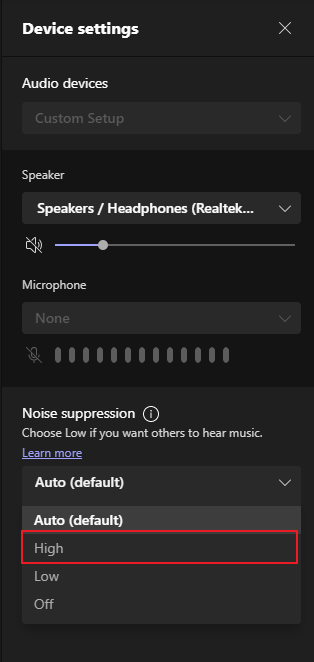
Step 3 – Enable Microsoft Teams noise suppression
Microsoft Teams reduces typing, keyboard clicks and fan noise with noise suppression. To enable:
- Go to Microsoft Teams Settings > Devices
- Find Noise suppression and set it to Auto, High, or Low based on your environment
Fixing Microsoft Teams meeting audio issues helps you communicate without distractions. Advanced troubleshooting Microsoft Teams is available or IT if echo or noise persists.
What Should You Do Now?
Microsoft Teams works best when your setup, network and devices are ready. Keep these points in mind:
- Stable Internet: Prevent lag and dropped calls with a reliable connection.
- Proper Permissions: Ensure Microsoft 365 accounts have access to Teams features.
- Updated Devices: Keep Teams app, microphones, cameras and headsets up to date.
- Clear Cache: Restart Teams and clear cache to fix syncing and notification issues.
At TECHOM Systems, we make sure your Teams setup runs smoothly, from voice and meetings to file sharing and support. Contact us at 1800 867 669 or email hello@techomsystems.com.au for expert assistance.
4. File Sharing and Access Issues in Microsoft Teams
Microsoft Teams integrates OneDrive and SharePoint for secure file sharing and collaboration. Users may encounter issues uploading, sharing, or opening files. The Microsoft Teams troubleshooting steps below fix common file issues.
4.1 Unable to Upload or Share Files in Microsoft Teams
If file uploads or sharing are not working in Microsoft Teams, try these troubleshooting steps:
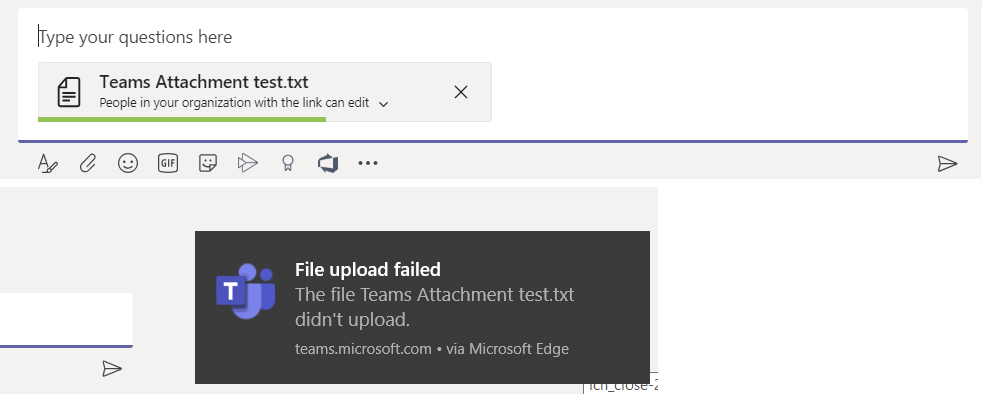
Step 1 – Check Microsoft Teams file size limits
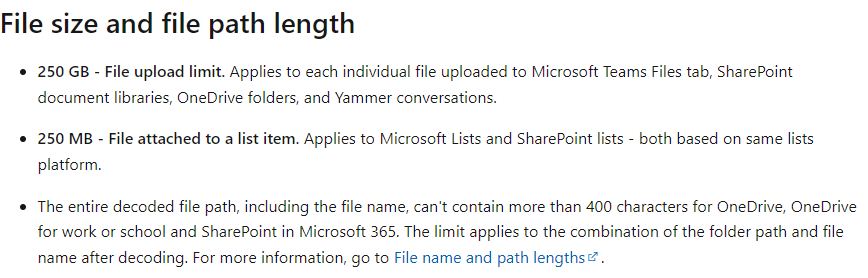
Microsoft Teams allows 250 GB file uploads. If a file exceeds this limit, reduce its size or upload it to OneDrive and share the link in Teams.
Step 2 – Verify OneDrive or SharePoint permissions
SharePoint or OneDrive stores Microsoft Teams files. Ensure recipients can view or edit. File owners may need to change sharing.
Step 3 – Switch between Teams desktop app and web version
If file uploads fail in the Microsoft Teams desktop app, try using Teams on the web or switch to a different browser to rule out app-specific issues.
Step 4 – Clear Microsoft Teams cache and restart
Cached data can interfere with file uploads. Clearing the Microsoft Teams cache and restarting the app often resolves upload and sharing problems.
4.2 Cannot Open Shared Files in Microsoft Teams
If shared files won’t open in Microsoft Teams, follow these troubleshooting steps:
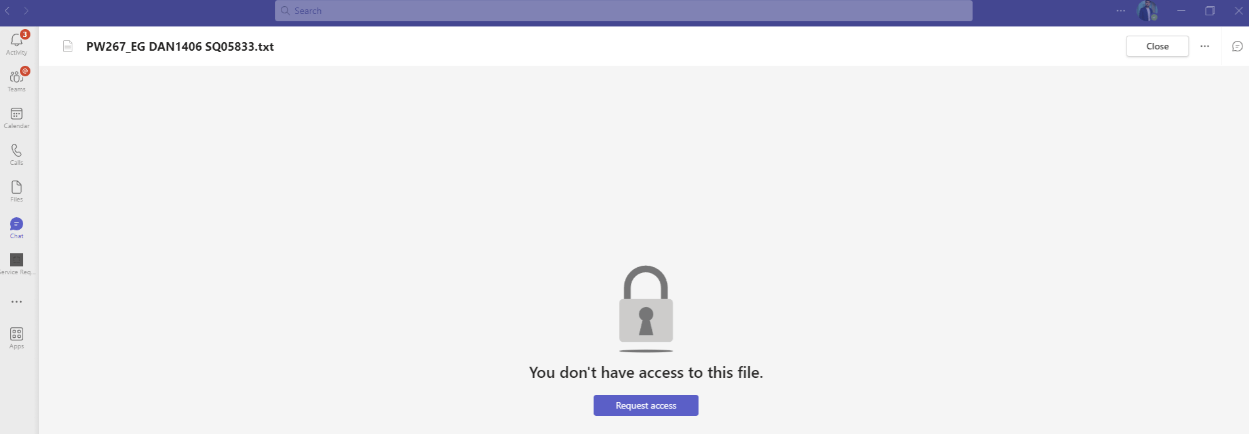
Step 1 – Confirm required Microsoft Office apps are installed
Microsoft Teams opens documents using Microsoft Office apps like Word, Excel and PowerPoint. Ensure the relevant Office application is installed and up to date.
Step 2 – Check OneDrive and SharePoint sync status
Since Teams files are stored in OneDrive or SharePoint, sync or connection issues can prevent files from opening. Verify that OneDrive or SharePoint is properly connected and syncing without errors.
Step 3 – Download and open the file locally
If a file does not open within Microsoft Teams, download it and open it on your device. This helps determine if the issue is related to Teams or the file itself.
5. Notifications and Sync Issues in Microsoft Teams
Microsoft Teams notifies users of messages, calls, mentions and meetings. Communication can be disrupted by notifications or message sync issues. The following Microsoft Teams troubleshooting steps fix notification and sync issues.
5.1 Microsoft Teams Notifications Not Working
If Microsoft Teams notifications are not appearing for new messages, calls, or mentions, try these fixes:
Step 1 – Review Microsoft Teams notification settings
Go to Settings > Notifications in Microsoft Teams. Set up message, mention, call and meeting notifications. Once changed, restart Microsoft Teams.
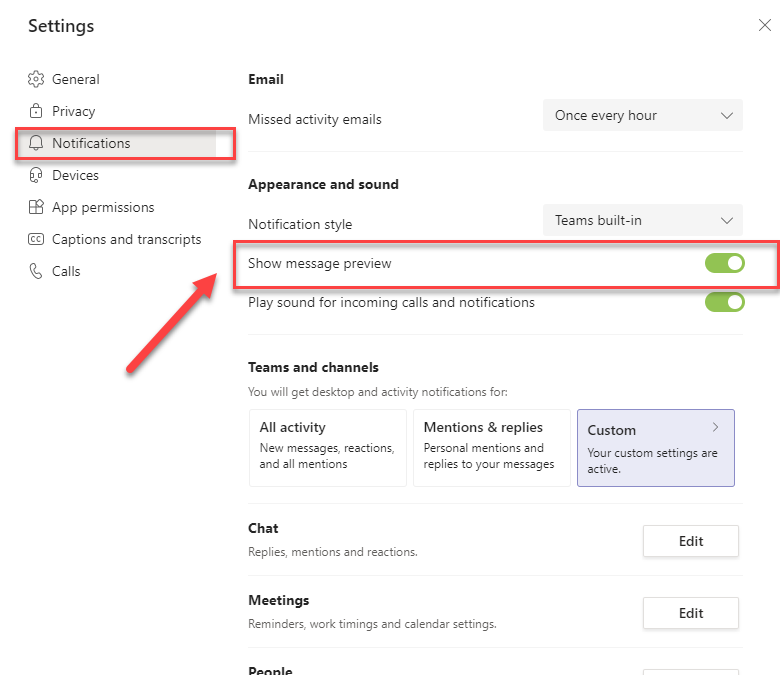
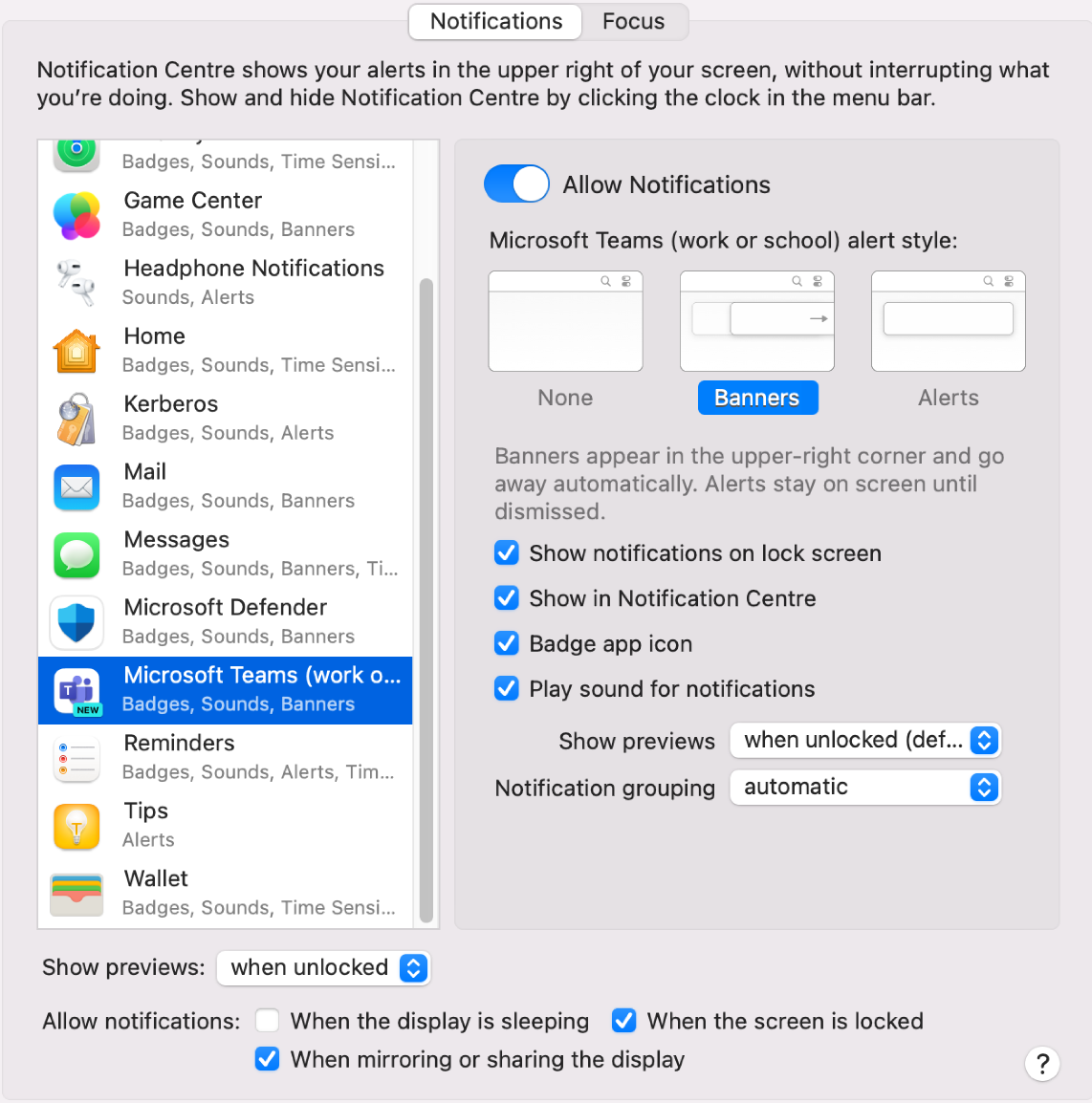
Step 2 – Check Windows or macOS notification permissions
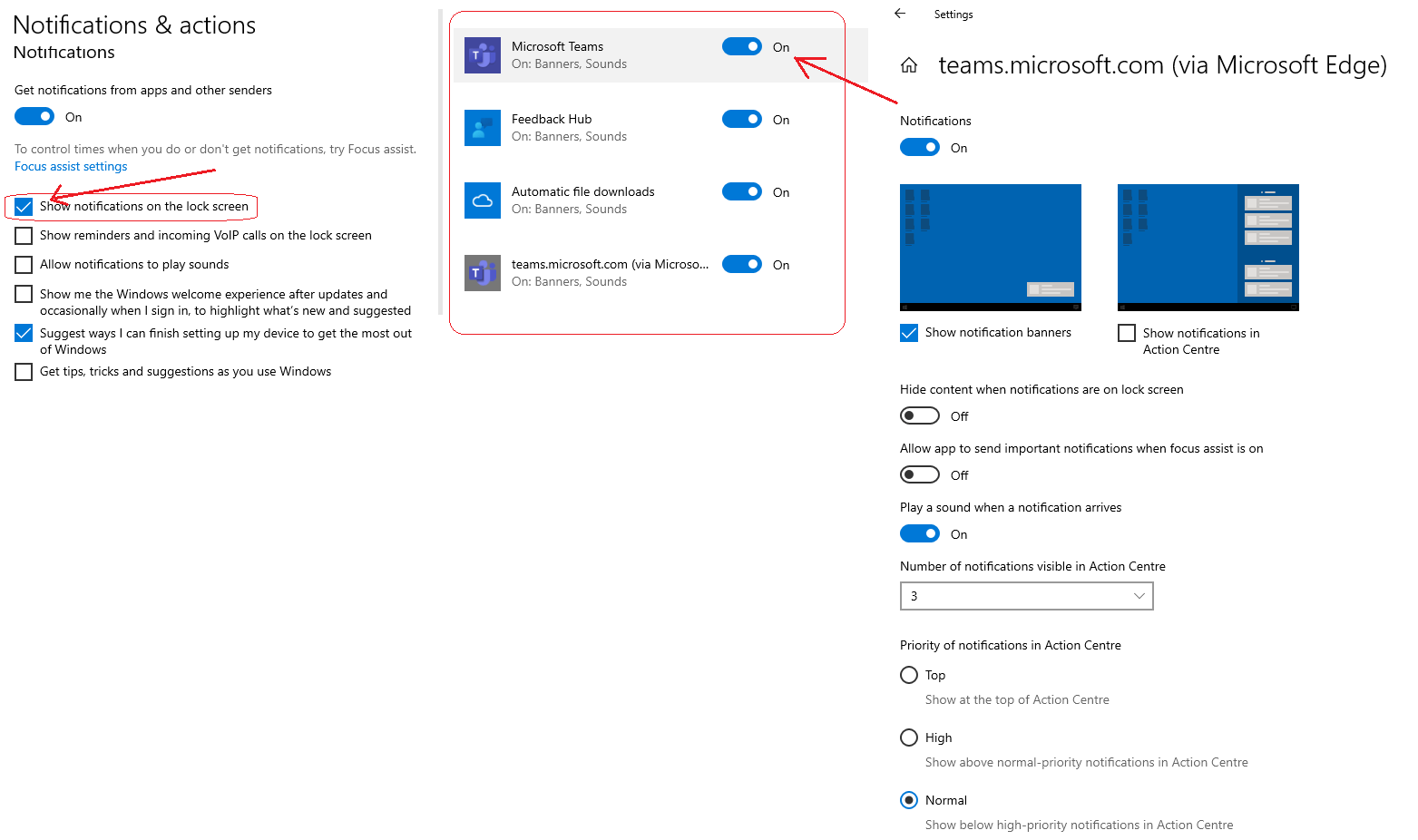
Operating system settings may block Teams notifications.
- Windows: Go to Settings > System > Notifications and confirm Microsoft Teams is allowed to send notifications
- macOS: Open System Preferences > Notifications and ensure notifications for Microsoft Teams are enabled
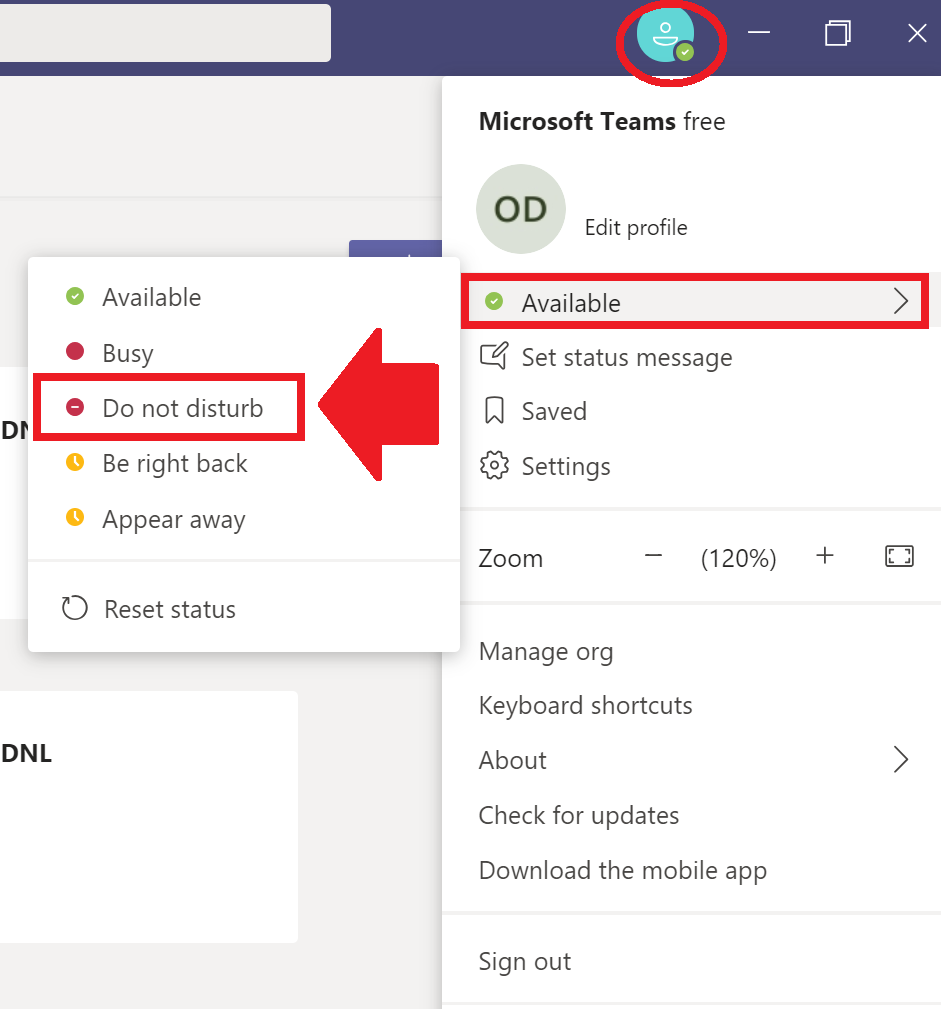
Step 3 – Disable Focus Assist or Do Not Disturb mode
Do Not Disturb (macOS) or Focus Assist (Windows) can disable Microsoft Teams alerts. Turn them off to see notifications normally.
Step 4 – Restart Microsoft Teams and re-sign in
Signing out and back into Microsoft Teams refreshes the session and can fix notification sync issues.
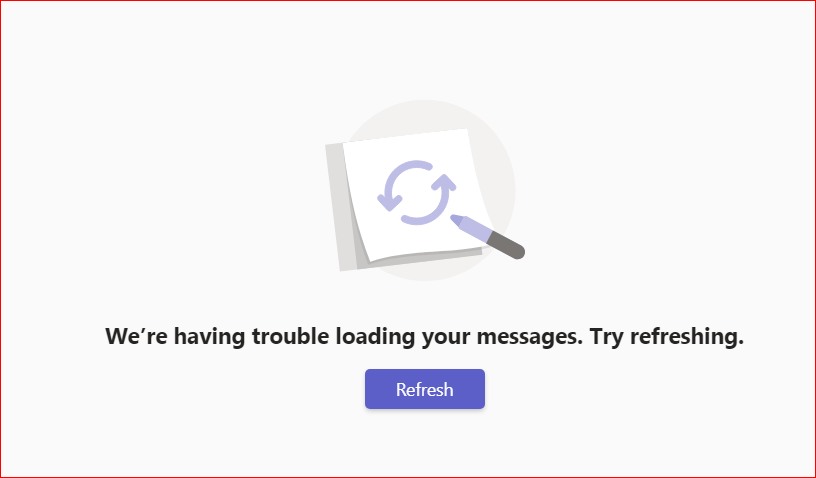
5.2 Messages and Activity Not Syncing in Microsoft Teams
If Microsoft Teams messages are delayed or not syncing across devices, follow these troubleshooting steps:
Step 1 – Check internet speed and network stability
Slow or unstable internet connections can delay message syncing. Run a speed test and confirm your network is stable.
Step 2 – Sign out and sign back into Microsoft Teams
Logging out and back in forces Microsoft Teams to refresh and sync recent messages and activity.
Step 3 – Clear the Microsoft Teams cache
Corrupted cache data can cause syncing issues. To clear the cache:
- Fully close Microsoft Teams
- Delete files from C:\Users\YourUsername\AppData\Roaming\Microsoft\Teams
- Restart Microsoft Teams and check message syncing
Step 4 – Use Microsoft Teams on the web
If desktop app syncing issues persist, sign in to Microsoft Teams online to determine if the issue is app- or account-related.
This Microsoft Teams troubleshooting guide restores notifications and message syncing for better device-wide communication. If problems persist, contact Microsoft Teams support or your IT team.
FAQs
1. Why is Microsoft Teams not opening or crashing?
This can happen due to corrupted cache, outdated app versions, or temporary server issues. Restart Teams, clear the cache and make sure it’s updated.
2. Why are my Teams calls dropping or audio is poor?
Poor call quality usually comes from unstable internet, network congestion, or device issues. Use a wired connection, check your headset and enable noise suppression in Teams.
3. Why can’t I upload or open files in Teams?
File issues are often related to permissions, OneDrive/SharePoint sync problems, or outdated Office apps. Verify permissions and ensure all apps are updated.
4. How can TECHOM Systems help with ongoing Teams issues?
For setup, Teams Voice support, troubleshooting, or optimization, TECHOM Systems provides expert guidance and local support to ensure smooth communication across your business.
Resources & Support for Microsoft Teams
Our authorized services can help diagnose and improve Microsoft Teams performance if troubleshooting fails. Trusted leader and Microsoft Teams troubleshooting tutorials are below.
Contact TECHOM Systems for Microsoft Teams Voice Support
If problems with Microsoft Teams keep getting in the way of daily work, TECHOM Systems is here to help. Support includes setting up Microsoft Teams, giving users access, fixing configuration problems, and improving performance to make sure that the Teams platform works smoothly and reliably.
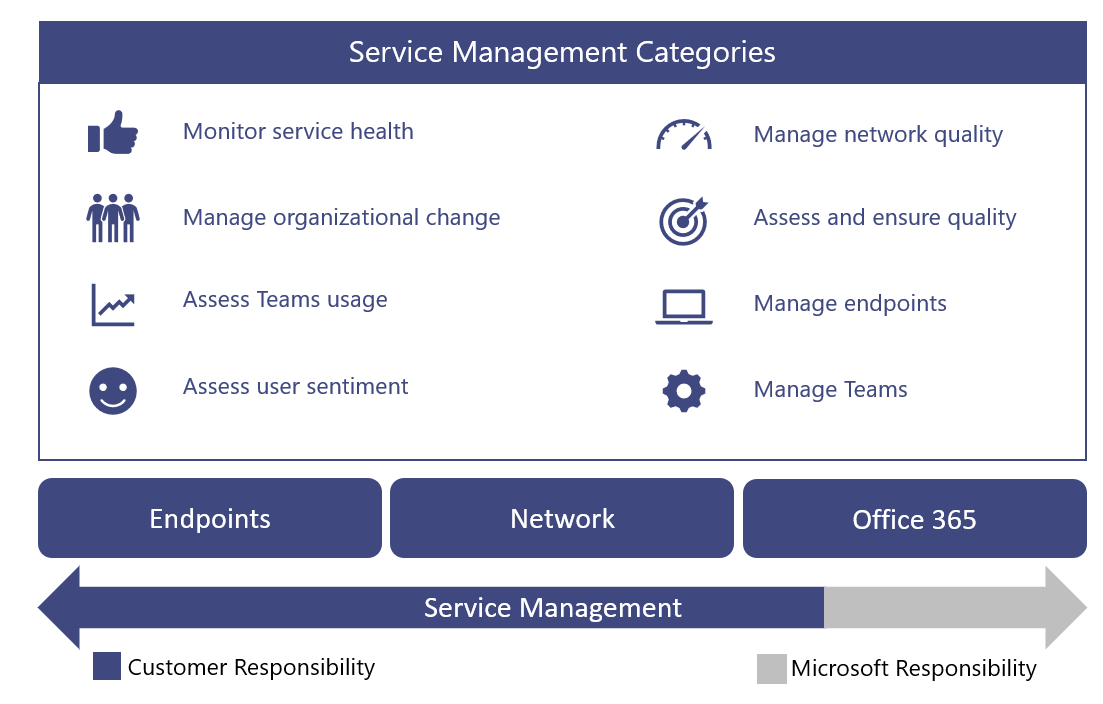
From dropped calls and poor audio quality to configuration and deployment support, TECHOM Systems helps keep Microsoft Teams Voice running efficiently across your organisation.
Upgrade Your Business Communications
TECHOM Systems offers Microsoft Teams Consulting and deployment services, switching is easy with TECHOM Systems:
1. First Meeting
We look at the needs of the business to see how Microsoft Teams might help with collaboration, productivity, and processes.
2. Setting up teams
TECHOM Systems configures up Microsoft Teams capabilities, user access, policies, and connectors that meet the needs of the organization.
3. Testing and Improvement
The environment is rigorously tested and improved to make sure that it works well, is stable, and gives all Teams a consistent experience.
4. Help and support that lasts
Teams get clear instructions on how to use Microsoft Teams well, and TECHOM Systems is always there to help them make the switch and keep becoming better.
Having trouble with Microsoft Teams or other Microsoft solutions? Share your details below, and our experts will reach out soon for a detailed discussion and support.
Conclusion
Microsoft Teams performs an important role in daily business communication; however, issues such as call drops, sluggish performance, meeting interruptions, or difficulties in accessing files can swiftly impact productivity. The good news is that many common Microsoft Teams issues can be fixed with the right troubleshooting steps, checking network stability, keeping apps and devices updated, managing permissions and clearing cached data.
Microsoft Teams is essential for businesses that rely on calling, meetings, and collaboration, making the right setup critical. TECHOM Systems helps businesses with setup and Microsoft Teams troubleshooting, including voice-related issues, to keep communication running smoothly. When configured and supported correctly, Microsoft Teams becomes a reliable platform that allows teams to stay connected and work efficiently without interruptions.
For personalized support or a detailed discussion, reach out to our experts, we are ready to help.

A content strategist and IT writer with over 7 Years of experience simplifying complex tech concepts into clear, actionable insights. Specialising in cloud computing, cybersecurity and enterprise IT trends, he crafts content that bridges the gap between technical depth and business value. Helping businesses thrive with practical guidance, Pradeep talks about facts, is keen to share knowledge, and always puts the community first. Outside of work, he enjoys exploring open-source projects and mentoring aspiring IT professionals, reflecting his passion for continuous learning and community growth.