
Summary:
If your Office 365 apps keep crashing, refusing to sync or randomly signing you out, you’re not alone. Most Outlook, Teams, OneDrive and SharePoint problems come from local settings, network issues or recent updates—not Office 365 itself. This blog breaks down the most common issues businesses face, why they happen and the simple steps you can take to fix them. You’ll also learn when it’s best to get expert help from TECHOM Systems to keep your workflows running smoothly.
Key Insights:
- Many businesses keep facing Office 365 not syncing, Outlook running slow, Teams signing out, and OneDrive/SharePoint not loading — and most of these issues come from local settings, not Microsoft.
- Common problems like login errors, MFA issues, slow loading apps and file-sync conflicts usually happen after updates, network restrictions or outdated credentials.
- If your Office 365 apps keep acting up, simple steps like checking your internet, clearing sign-ins, updating OneDrive/Teams and restarting devices fix most issues.
- Frequent file duplication or missing documents often means your team is editing files at the same time or using old sync clients.
- Getting help from experts like TECHOM Systems makes troubleshooting faster and prevents the same Office 365 issues from coming back.
Have you ever walked into your office on a busy Monday morning only to find your Outlook refusing to sync? Or maybe your team is trying to collaborate on a document, but SharePoint won’t load. Or an important file you were working on yesterday suddenly is not showing up on OneDrive today.
If any of these situations feel familiar then you are not alone. Many businesses deal with common Office 365 problems every week. Even though Office 365 is one of the most powerful productivity suites available today, issues can appear at the worst times and interrupt critical workflows.
Imagine these real-world scenarios:
- Scenario 1: You are about to join a customer meeting on Teams and suddenly your account signs out. You try again and again, but it keeps refusing your login.
- Scenario 2: Your finance team is trying to close their monthly reports, but Excel Online loads slowly and formulas don’t calculate correctly.
- Scenario 3: Your sales manager tries to access shared files from a different device, but the folder refuses to sync.
Situations like these raise stress levels, slow down teams and impact productivity. That is why understanding common Office 365 problems and how to handle them makes a significant difference for any business owner or IT decision-maker.
As someone who works closely with business teams, I often recommend connecting with experts who handle these issues daily. If you ever need clarity or guidance, you can always reach out to TECHOM Systems. I’ve seen how much smoother operations become when professionals step in to help.
Let me walk you through everything you need to know about the most frequent challenges, why they occur and what you can do to prevent them. But let’s first go through some facts…
Did You Know:
Many companies assume that upgrading to the cloud automatically eliminates issues. But studies show that more than 60% of cloud-based productivity interruptions come from local system configurations and not Office 365 itself.
This means solving common Office 365 problems is often about improving your environment rather than replacing your tools.
Why Businesses Keep Facing Common Office 365 Problems
Even though Microsoft designs Office 365 for performance and reliability, problems surface due to:
- Misconfigured settings
- Updates that change how features behave
- Network restrictions
- Authentication challenges
- Sync conflicts
- Data migration issues
- Compatibility limitations
- User errors and lack of training
The more your business depends on cloud tools, the more noticeable disruptions become. The good news is that most common Office 365 problems have clear reasons and achievable fixes.
1. Login and Authentication Failures
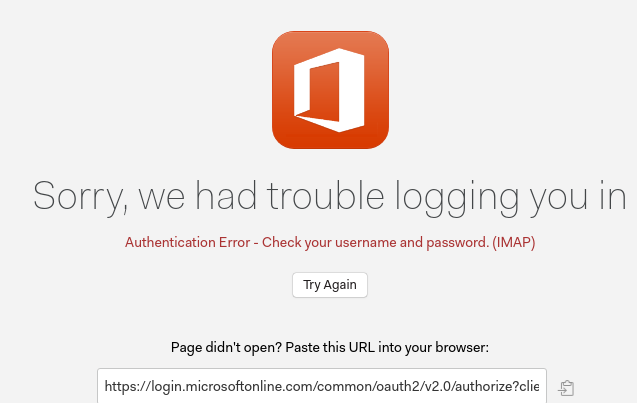
One of the most widespread common Office 365 problems is login failure. Many users suddenly see errors such as “Authentication failed,” “Your session has expired,” or “Something went wrong.”
These issues often come from:
- Multi-factor authentication conflicts
- Password changes not syncing
- Cached credentials
- Conditional access or security policies
- Network restrictions
From my experience, businesses also face reporting challenges connected to Microsoft Office issues, often because accounts are not synced correctly between devices. Logging in with outdated credentials makes the situation more complicated.
A quick fix is clearing stored sign-ins, updating authentication methods and verifying if recent changes in security policies are blocking the login.
Source: Microsoft
2. Outlook Sync and Performance Issues
If you have used Outlook for long, you have probably noticed how slow it gets when the mailbox grows too large. Many users report Microsoft Office issues because emails don’t load, folders disappear or messages duplicate.
Common causes include:
- Corrupt OST files
- Network latency
- Mail profile errors
- Add-ins causing slowdowns
Sometimes Outlook refuses to sync when a device is connected to a public network with limited access. Teams often end up spending hours trying to fix this and adopting the right Microsoft 365 solutions can help prevent such issues, especially during peak workdays.

Source: Microsoft
3. Teams Not Working Smoothly
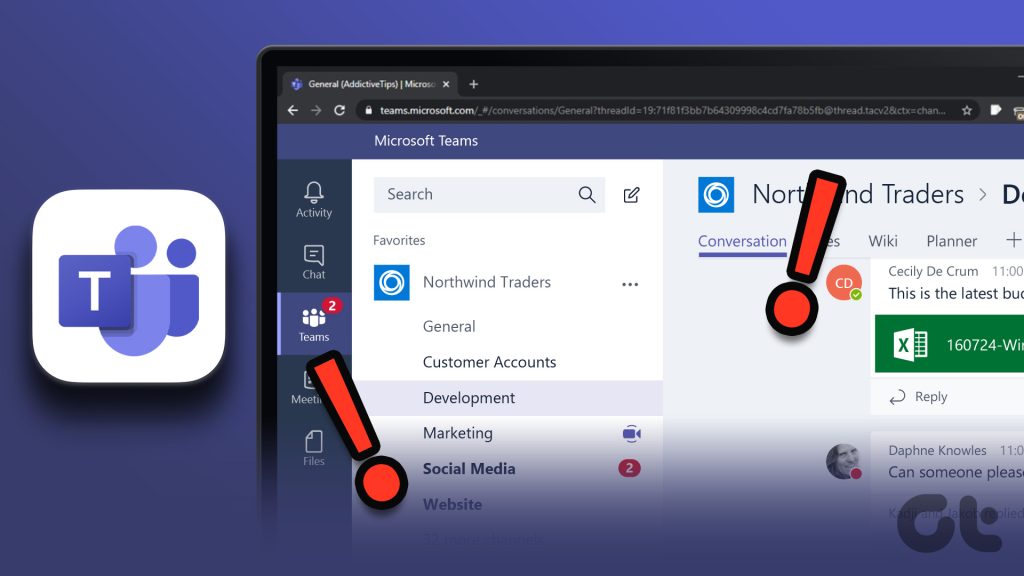
Teams has become the backbone of communication for many organisations. A major part of common Office 365 problems today involves Teams, including:
- Calls dropping
- Chats not updating
- Screens not sharing
- Users randomly signing out
- Meetings failing to load
Sometimes the problem is related to background updates. Businesses often report Office 365 problems after update because new features are added that modify performance or existing settings.
When Teams updates in the background, it may require a system restart to stabilise. However, many users don’t restart their devices frequently, which leads to performance glitches.
Source: Microsoft
4. SharePoint and OneDrive Sync Conflicts
SharePoint and OneDrive are essential for file collaboration. But they can also cause some of the most frustrating common Office 365 problems such as:
- Files not syncing
- Duplicate copies
- Version conflicts
- Sharing links refusing to work
- Slow upload speeds
In many cases, sync conflicts appear when two users edit the same file or when someone opens a document offline and then reconnects later.
Businesses that plan to move company data to Office 365 often see these file-syncing challenges during migration. Incorrect folder mapping or outdated sync clients make the situation worse.
When I work with business teams, I always remind them that structured storage and proper access permissions reduce almost half of these sync conflicts.

Source: Microsoft
5. Problems After Installing Updates
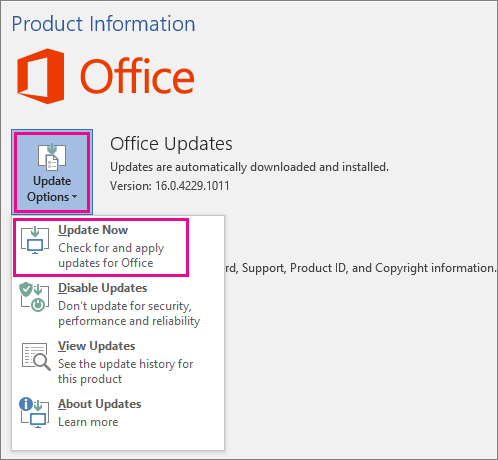
Office 365 updates roll out frequently to add new features and security enhancements. But updates can also introduce surprising issues for users. Many clients report Office 365 problems after update, including:
- Apps closing unexpectedly
- Add-ins becoming disabled
- Files not loading correctly
- Display or layout changes
- Missing toolbar options
Some updates conflict with existing system settings or local applications. Businesses often wait to roll out updates until they test them thoroughly. TECHOM Systems helps companies manage update cycles so everything stays stable.
Source: Microsoft
6. Data Migration Complications
When businesses decide to move company data to Office 365, they expect a smooth shift. But a lot can go wrong during migration:
- Large files not transferring properly
- Permissions not replicating
- Old email data failing to import
- Deleted items reappearing
- Folders not maintaining structure
Migrations also reveal Microsoft Office issues that didn’t appear earlier. Applications sometimes behave differently once data is shifted to the cloud.
Many companies choose to work with experts because migration is one of the most sensitive tasks in IT. A single mistake can lead to lost data or downtime. If your business plans a migration soon, TECHOM Systems can guide you through each step. You can even reach out through hello@techomsystems.com.au anytime.

Source: Microsoft
7. Error Messages Related to Code or Configuration
Some users encounter a specific type of challenge known as the problematic code change error in Microsoft 365. This error typically appears when:
- Updates conflict with existing add-ins
- Developers make changes to macros
- Security updates restrict custom scripts
- Configuration settings are altered
These errors confuse most users because they appear suddenly and block access to files. Many professionals prefer not to touch anything in fear of making the situation worse.
Businesses often reach out to specialised teams like TECHOM Systems for quick resolutions. One of the first things I do is check version history and recent updates because those often reveal the root cause.
The problematic code change error in Microsoft 365 also appears in environments that haven’t received updates for a long time or have outdated Excel functions.

Source: Microsoft
8. Network and Connectivity Challenges
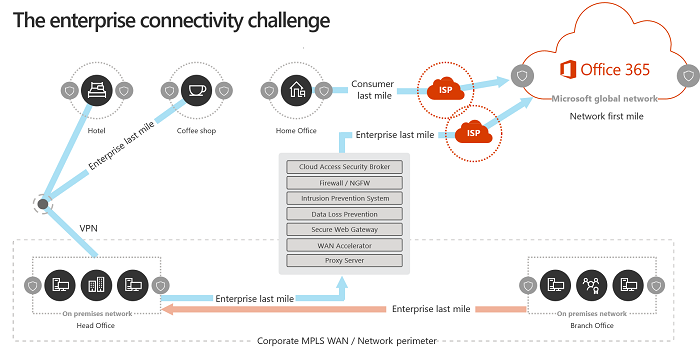
Even though Office 365 works from the cloud, it relies heavily on stable internet connections. A lot of common Office 365 problems arise because networks block certain ports or throttle connections.
Connectivity challenges include:
- Slow loading
- Files taking long to sync
- Teams video lag
- Email delays
An unstable network affects all apps, even if the devices themselves work perfectly. That’s why businesses conduct regular network assessments to locate weak points.
Source: Microsoft
Free Tips For You: How To Migrate Yahoo Mail To Office 365 Without Losing Emails
What Should I Do Now?
If you keep running into common Office 365 problems, here is what I usually advise:
- Start by listing the problems your team faces most often.
- Check if those issues began after updates or new device installations.
- Restart all devices to refresh cached settings.
- Test your internet connection speed and stability.
- Verify login credentials across all devices.
- Make sure syncing apps such as OneDrive are fully updated.
- Identify any add-ins that slow down Excel, Outlook or Teams.
- Seek professional help if the same issues repeat weekly.
You can always email hello@techomsystems.com.au if you want quick guidance.
How TECHOM Systems Helps Businesses Handle These Problems
Across Australia, businesses work with TECHOM Systems because they want stability, efficiency and smooth cloud adoption. Whenever I talk to clients, I notice one common thing: they don’t want long downtime or complicated troubleshooting. They want solutions that work immediately and keep their teams productive.
TECHOM Systems provides clarity, simplifies configurations and helps teams avoid recurring interruptions. If you ever want a quick consultation, feel free to reach out. Many business owners appreciate when someone explains problems in simple language rather than throwing technical jargon at them.
Frequently Asked Questions
#1: How can I fix login and authentication errors?
Ans. Login issues often arise from expired passwords, multi-factor authentication conflicts or cached credentials. Clearing stored sign-ins, updating authentication methods and verifying security policies usually resolves the problem.
#2: Why does Teams keep signing me out?
Ans. Teams can sign out unexpectedly due to updates, expired tokens, network restrictions or account permission conflicts. Restarting Teams, updating the app and checking network stability usually fixes the issue.
#3: What causes OneDrive or SharePoint files to duplicate?
Ans. File duplication often happens when multiple users edit files simultaneously, offline changes are synced later or folder structures aren’t consistent. Keeping the latest sync client and structured folders reduces conflicts.
Final Thoughts
Businesses depend on Office 365 every day. When applications stop responding or syncing, work slows down instantly. Knowing how to handle common Office 365 problems helps you maintain smoother workflows and prevent big productivity losses. Whether you are dealing with Microsoft Office issues, preparing to move company data to Office 365, navigating the problematic code change error in Microsoft 365 or facing Office 365 problems after update, the right support makes everything easier.
I’ve seen countless organisations transform the way they work simply by understanding their challenges and choosing the right service provider. If you ever feel stuck or need expert help, Contact TECHOM Systems, who is always ready to guide you. If you have any questions or want to share your thoughts, then feel free to comment below…


Technical Specialist with 10+ years of experience in IT solutions, data engineering and AI-driven automation. At TECHOM Systems, she focuses on delivering secure, scalable and business aligned technology strategies. She applies advanced technical skills to develop scalable solutions and integrate emerging technologies for optimized digital workflows.



Jimmy Taylor
January 5, 2026This was a really helpful read. Office 365 issues can be frustrating, especially when they affect daily work and this blog explains the common problems in a simple way. I liked how it focused on practical challenges that users face. Definitely useful for anyone relying on Office 365 for everyday business tasks.
Satbir Kaur
January 5, 2026Thank you for your feedback! I am glad that you found the blog useful and relevant.