

Summary: Managing issues in Microsoft Teams can be challenging, from connectivity problems to audio, video and display glitches. Understanding Microsoft Teams troubleshooting helps users quickly resolve common problems, optimize performance and improve collaboration. This guide provides practical solutions like checking your internet, restarting the app, clearing cache, updating Teams and adjusting audio/video settings.
For complex deployments, professional assistance and migration services ensure seamless operation and prevent recurring issues. I recommend leveraging expert guidance to maximize efficiency. Contact TECHOM Systems and book a free consultation by clicking the button below…

Have you ever joined a Microsoft Teams meeting and suddenly your audio cuts out? Or maybe your screen won’t share and you see that spinning loading icon that seems to never end. If these situations sound familiar, you’re not alone. Many users face interruptions that disrupt workflow and communication. Understanding Microsoft Teams troubleshooting is crucial to keep your team connected and productive.
In this blog, I’ll guide you through practical tips, common issues and expert advice to help you navigate Teams more efficiently. By the end, you’ll know exactly what steps to take to fix issues, prevent them and get professional help if needed.
Why Microsoft Teams Issues Happen?
Understanding why Microsoft Teams issues occur can make troubleshooting much easier. Many problems arise from network and connectivity challenges, which can cause slow performance, dropped calls or failed meetings. Outdated versions of Teams or your operating system can also lead to glitches, while misconfigured settings, like microphone permissions or notification preferences, often disrupt the user experience. Even minor hardware conflicts with cameras, microphones or graphics drivers can affect both display and audio quality.
Another common reason is migration or setup challenges. Organizations that recently moved to Teams or performed updates without proper planning may face unexpected errors or missing features. Recognizing these root causes helps you focus on the right solutions quickly. By identifying whether your issue is network-related, hardware-based or a configuration problem, you can apply effective Microsoft Teams troubleshooting steps and minimize downtime.
Did You Know?
- Microsoft Teams is used by over 280 million monthly active users worldwide.
- Despite its popularity, nearly 30% of users experience issues such as connectivity problems, display errors or slow loading times.
- Many of these problems can be resolved with simple troubleshooting steps, saving hours of frustration.
- Knowing the right techniques for troubleshooting can make a significant difference in daily productivity.
- TECHOM Systems can provide expert guidance and support to help businesses resolve Teams issues quickly and efficiently.
Common Microsoft Teams Issues
Before diving into solutions, let’s look at some of the most frequent problems users encounter and explore Microsoft Teams troubleshooting tips to fix issues and boost productivity.
- Microsoft Teams not working – This is one of the most reported issues. Teams may fail to open, crash unexpectedly or fail to load channels and chats.
- Audio or video issues – Users often experience frozen video, choppy audio or microphone problems during meetings.
- Microsoft Teams display issues – Problems with screen sharing, blurred images or distorted layouts are common, especially after updates.
- Slow performance – Teams can sometimes lag, freeze or become unresponsive, impacting collaboration.
- Notification failures – Missed alerts or delayed notifications can lead to missed meetings or messages.
Identifying the type of issue you’re facing is the first step in effective Microsoft Teams troubleshooting.
Step-by-Step Microsoft Teams Troubleshooting Guide
Here’s a practical, step-by-step guide designed to help you tackle the most common Microsoft Teams problems. I’ll walk you through easy-to-follow Microsoft Teams troubleshooting solutions that you can try on your own, whether it’s fixing connectivity issues, resolving display errors or handling audio and video glitches. By following these tips, you can quickly get back to smooth, uninterrupted collaboration without wasting hours troubleshooting blindly.
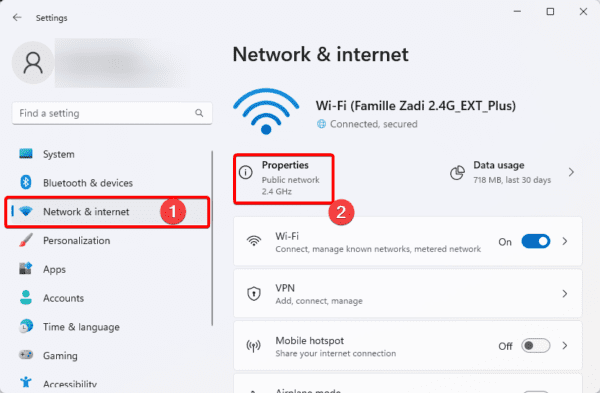
1. Check Your Internet Connection
A slow or unstable internet connection is one of the leading causes of Teams issues. Poor connectivity can result in frozen calls, delayed messages and channels failing to load. To fix this:
Prefer a wired connection over Wi-Fi whenever possible, as it provides a more stable and consistent connection.
Run a speed test to ensure your internet bandwidth meets Teams’ requirements, especially for video calls or large file sharing.
Restart your router to refresh the network and clear temporary glitches.
Even minor network disruptions can cause Teams to lag or freeze, so starting with your internet is often the quickest way to resolve many common issues.
2. Restart Microsoft Teams
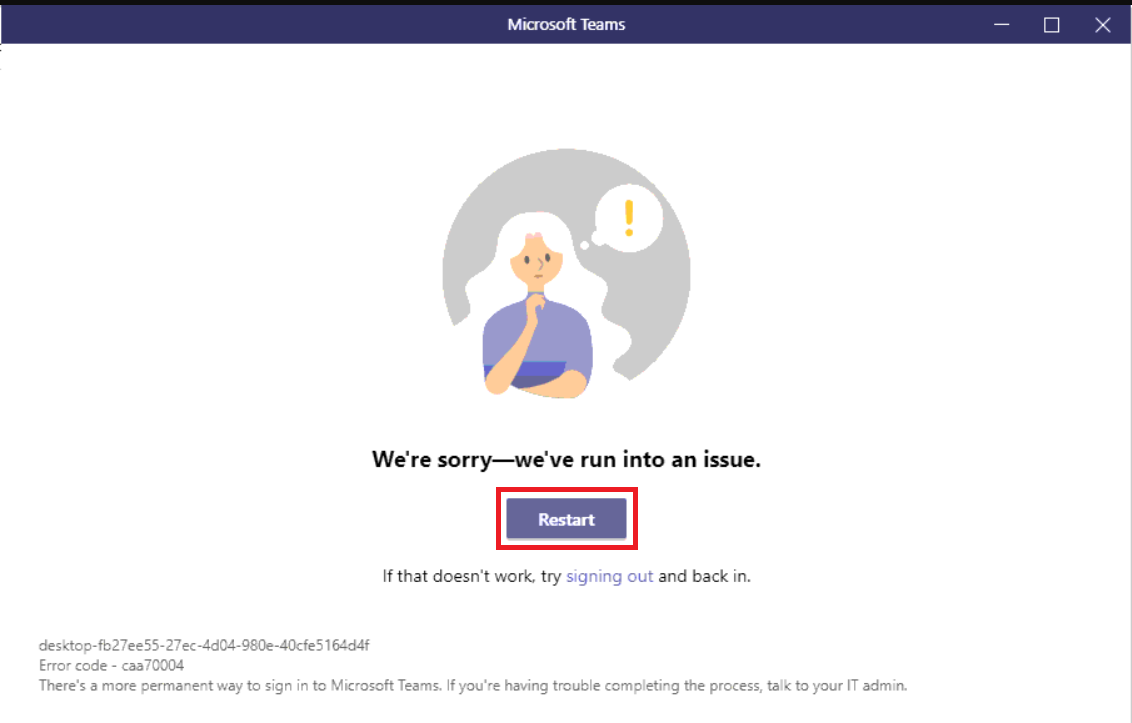
Sometimes, the simplest solution works best. Close the app completely, including background processes running in the system tray and reopen it. This can resolve temporary glitches, login errors or issues with loading channels.
I often suggest restarting Teams when users report Microsoft Teams not working, as it acts like a quick refresh for the app, clearing minor conflicts that may have developed over time.
3. Clear Cache
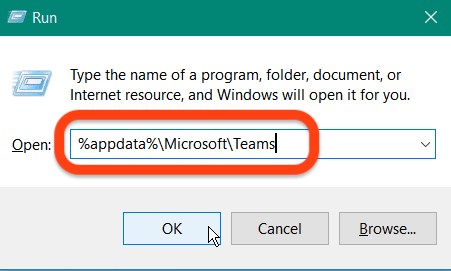
If Teams continues to act up, clearing the cache can solve persistent performance or display issues. Cached files may become corrupted or outdated, causing the app to behave unpredictably. Here’s how to do it:
Close Microsoft Teams completely.
Navigate to
%appdata%\Microsoft\Teamson Windows (or the equivalent folder on Mac).Delete all files in the Cache folder.
Restart Teams.
This method often resolves Microsoft Teams display issues, slow loading and unexpected glitches, giving your app a clean slate without losing essential data.
4. Update the App
Using an outdated Teams version is a common source of bugs and compatibility problems. Keeping your app updated ensures you have the latest features, bug fixes and security patches.
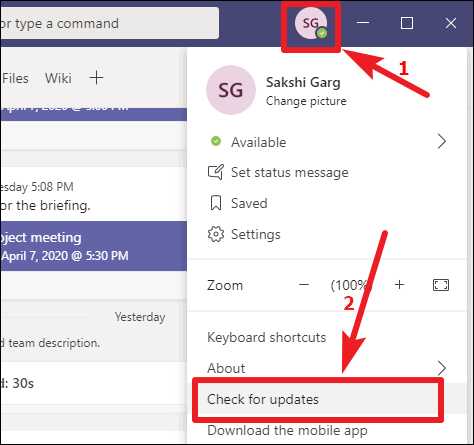
Click your profile picture → Select Check for updates.
If an update is available, install it and restart Teams.
Regular updates not only fix issues but also enhance app stability. I recommend enabling automatic updates where possible so you don’t have to worry about missing critical patches.
5. Check Audio and Video Settings
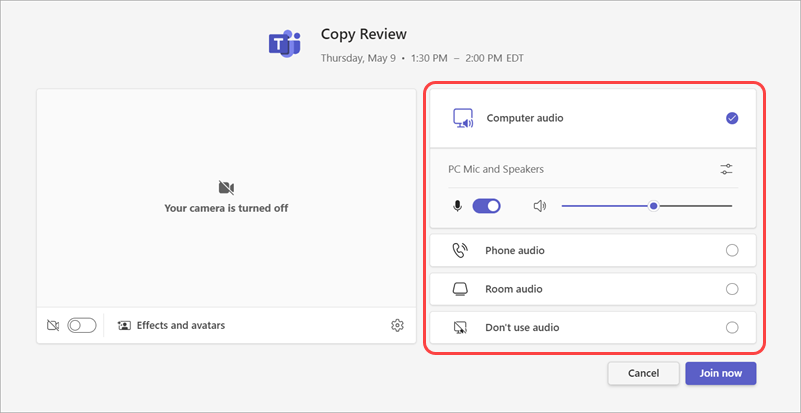
Audio and video issues can significantly impact meetings and presentations. These problems are often caused by hardware conflicts, incorrect permissions or network limitations. Here’s how to troubleshoot:
Test your microphone, speakers and camera in Teams settings to ensure they are detected and functioning properly.
Make sure no other apps are using the same devices simultaneously, which can create conflicts.
Adjust video resolution for better performance on slower networks and avoid choppy video.
If using external devices, ensure drivers are up-to-date for optimal performance.
These steps cover many of the troubleshooting Microsoft Teams issues that users face during calls or presentations.
6. Reinstall Microsoft Teams
If issues persist despite trying the above steps, a fresh installation often resolves deeper software problems that cache clearing or updates cannot fix:
Uninstall Teams from your system completely.
Delete residual folders like
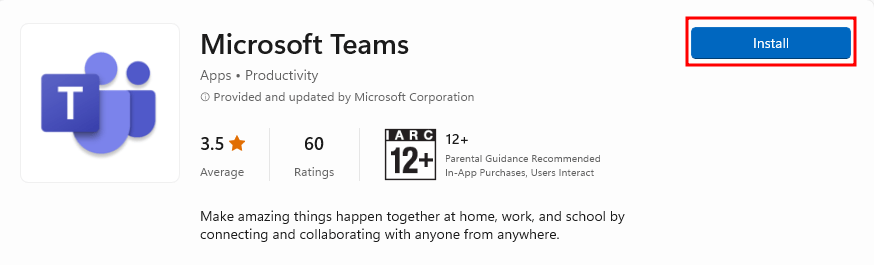
%appdata%\Microsoft\Teamsto remove leftover files.Download the latest version from the official Microsoft website and reinstall it.
Reinstalling ensures you have a clean, error-free installation. It’s especially effective for stubborn glitches, unexpected crashes or features that fail to load correctly.
Free Tips For You: How Can You Migrate From Zoom To Teams Easily?
Role Of Microsoft Teams Migration Services
Sometimes, troubleshooting isn’t just about fixing errors but it’s about ensuring your Teams environment is optimized. This is where Microsoft Teams migration services can be invaluable.
Professional migration services help organizations:
- Seamlessly move data from legacy platforms.
- Ensure proper configuration for Teams across all devices.
- Prevent recurring issues due to improper setup or outdated data.
I often recommend organizations consider professional assistance if their Teams deployment is complex or experiencing repeated problems. Microsoft Teams troubleshooting and Microsoft Teams solutions through migration services not only solve existing issues but also future-proof your collaboration environment.
Ready to fix your Teams issues and boost collaboration? Contact TECHOM Systems today and get expert support for seamless Microsoft Teams performance!
Preventing Microsoft Teams Display Issues
While troubleshooting is essential, prevention is equally important. Here are some tips to avoid Microsoft Teams display issues:
- Regular Updates – Always keep the Teams app and your device OS updated.
- Optimize Graphics Settings – Disable unnecessary animations in Teams to improve display and responsiveness.
- Manage Background Apps – Close unused applications to free system resources for Teams.
- Check Display Drivers – Ensure your graphics drivers are current, especially if you use Teams for video-heavy collaboration.
Following these practices can drastically reduce display errors and improve your overall Teams experience.
What Should I Do Now?
If you’ve tried all the steps above and still face issues, don’t worry. I suggest taking these next actions:
- Contact TECHOM Systems at hello@techomsystems.com.au. I’ve seen how their experts can quickly diagnose and resolve complex Teams problems, saving teams time and frustration.
- Schedule a consultation to review your current Teams setup. They can provide tailored recommendations, including Microsoft Teams migration services if needed.
- Check your IT environment – TECHOM Systems can help ensure that your network, devices and configurations are optimized for Microsoft Teams performance.
I personally recommend reaching out if troubleshooting on your own doesn’t resolve the problem. A professional touch ensures smooth collaboration and prevents recurring issues.
Choose TECHOM Systems For Reliable Microsoft Teams Support
When it comes to solving Microsoft Teams troubleshooting issues, having an expert by your side can make all the difference. I recommend choosing TECHOM Systems because they offer tailored solutions that address your specific challenges. Whether you’re dealing with Microsoft Teams not working, persistent display issues or need guidance on Microsoft Teams migration services, their team has the expertise to handle it efficiently.
With TECHOM Systems, you get more than just technical fixes. They help optimize your Teams environment, prevent recurring problems and ensure your team can collaborate smoothly every day. I’ve seen how their support can save hours of downtime and significantly improve productivity. If troubleshooting alone isn’t enough, TECHOM Systems provides professional consultation and hands-on assistance to get your Teams setup running perfectly.
Frequently Asked Questions
#1: What causes audio or video problems in Teams?
Ans. Audio and video issues are usually caused by hardware conflicts, incorrect permissions, low bandwidth or outdated drivers. Testing microphones, cameras and speakers, checking permissions and optimizing network connection often restores smooth performance.
#2: How can I speed up slow Microsoft Teams performance?
Ans. Slow Teams performance can result from background apps consuming resources, outdated versions or network issues. Closing unnecessary apps, updating Teams, clearing cache and ensuring a stable internet connection helps improve speed and responsiveness.
#3: Can troubleshooting Microsoft Teams issues prevent future problems?
Ans. Yes. Performing regular updates, checking app settings, monitoring device performance and addressing small glitches proactively can reduce recurring errors and help Teams run smoothly without interruptions, saving time and frustration.
Final Thoughts
Microsoft Teams troubleshooting doesn’t have to be stressful. By following simple steps like checking your connection, clearing cache, updating the app and optimizing settings, most issues can be resolved quickly. Additionally, leveraging Microsoft Teams migration services and expert advice from TECHOM Systems can help prevent recurring problems and improve long-term efficiency.
Remember, even minor issues can disrupt workflow. Taking proactive steps, knowing common problems and seeking professional guidance when needed can save hours of downtime and enhance your overall Teams experience.
If you’ve faced any persistent issues or want to ensure your Teams environment is fully optimized, don’t hesitate to Contact TECHOM Systems at hello@techomsystems.com.au. Drop a comment below and share your experience, I would love to hear how these tips have helped you or what other challenges you’ve encountered.