Windows 10 has long been a cornerstone of modern computing across personal and enterprise environments. But with Windows 10 end of support on October 14, 2025, millions of devices may soon be running an insecure operating system. If you are unable to upgrade from Windows 10 to Windows 11 or unsure how to upgrade to Windows 11 as Windows 10 support ends, discover 5 options to stay secure and plan ahead with us TECHOM Systems. You face an important decision, upgrade, replace, or explore alternatives.

We understand the challenges businesses and individuals face as Windows 10 support ends. This guide outlines five practical options to safeguard your data, avoid costly downtime and build a future-ready IT strategy.
1. Stay Protected with Extended Security Updates (ESU)
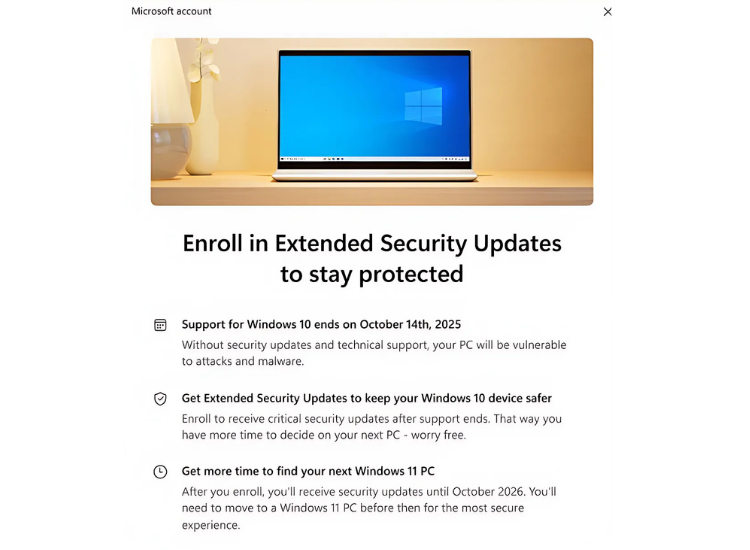
Microsoft’s Extended Security Updates (ESU) for Windows 10 provide temporary protection for PCs that can’t be upgraded to Windows 11 immediately.
How it works
- ESU delivers critical security patches beyond the October 2025 deadline.
- Consumers can receive a free year of updates by signing in with a Microsoft account or using Windows Backup linked to OneDrive.
- Additional coverage costs around US$30 per PC per year, while enterprise licensing is priced per seat.
- Microsoft also offers 1,000 Rewards point redemption for a one-year extension, an option for individual users.
ESU rollout status
A new enrollment wizard for users who cannot upgrade Windows 10 to Windows 11 began appearing in August 2025 and Microsoft has confirmed that the full rollout will be available well before Windows 10 reaches end of support.
Who should consider ESU
- Businesses running legacy software or hardware that cannot move to Windows 11 yet.
- Organizations needing time to plan IT upgrades or budget for device replacement.
- Users requiring ongoing security compliance without immediate infrastructure changes.
2. Upgrade to Windows 11, If Your PC Meets Requirements
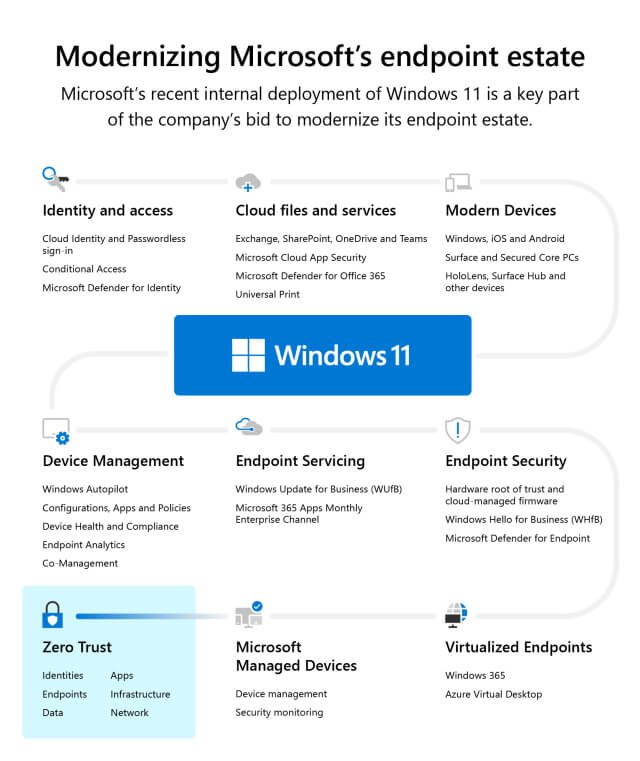
Windows 11 is Microsoft’s secure, modern operating system, ideal for users looking to upgrade Windows 10 to Windows 11. Designed for AI-enabled devices, cloud-based workflows, hybrid work setups, device security and enterprise IT management, Windows 11 delivers improved performance, compatibility and user experience.
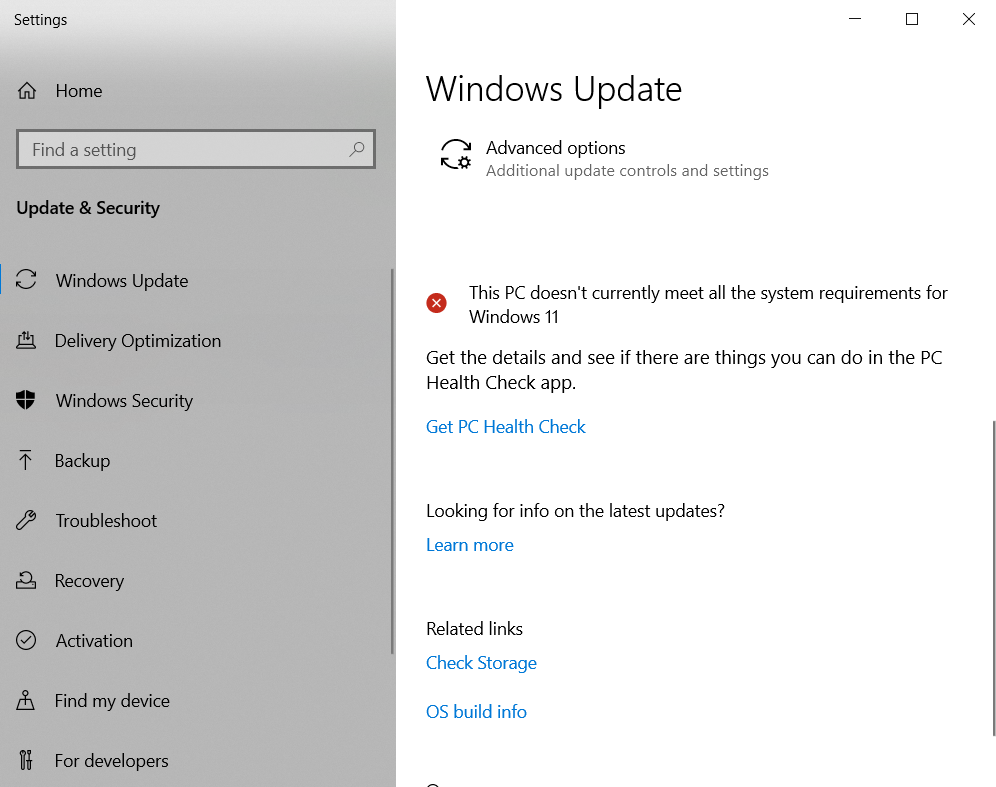
However, strict hardware requirements prevent many devices from upgrading…
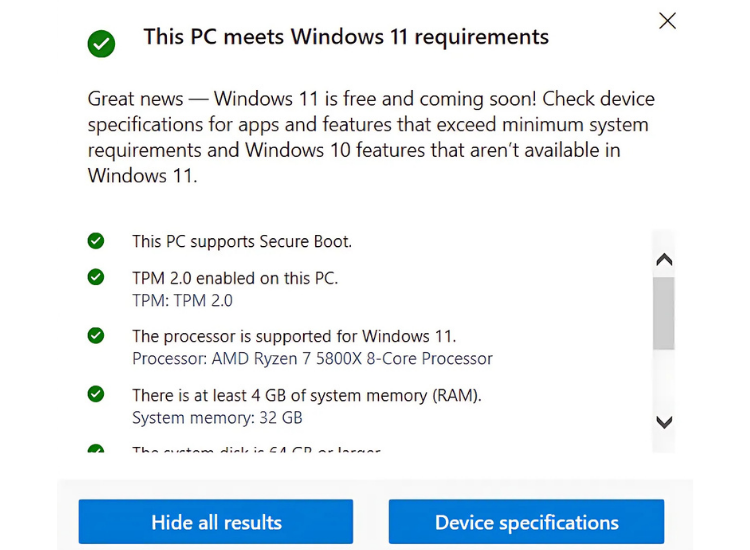
- Trusted Platform Module (TPM) 2.0
- UEFI firmware with Secure Boot enabled
- Intel 8th-gen or AMD Ryzen 2000 series CPU or newer
- At least 4GB RAM and 64GB storage
Benefits of upgrading to Windows 11
- When you upgrade to Windows 11, you get Long-term support and stability.
- Performance improvements such as faster boot times and better memory management.
- Advanced desktop management tools for business users.
Tips before upgrading
- Run Microsoft’s PC Health Check Tool to verify compatibility.
- Update BIOS/firmware to enable TPM and Secure Boot features.
- Consider clean installations for maximum reliability.
If your device passes the test, this is the most future-proof solution.
3. Keep Using Windows 10 Without Support, High Risk Ahead
Technically, you can continue using Windows 10 after October 2025, but doing so creates significant cybersecurity risks–
- No new updates means any discovered vulnerability remains unpatched.
- Cyberattacks target outdated operating systems because they’re easier to exploit.
- Businesses risk regulatory non-compliance in industries such as healthcare, finance and government.
The last time Microsoft ended support (Windows 7 in 2020), ransomware attacks and malware campaigns surged against unpatched systems. If you delay upgrading Windows 10 to Windows 11 or skip security updates, your devices and data may be at high risk of breaches, cyberattacks and other vulnerabilities. TECHOM Systems can help keep your systems secure with proper upgrade planning, endpoint protection and IT compliance.
4. Invest in a New Windows 11-Ready PC
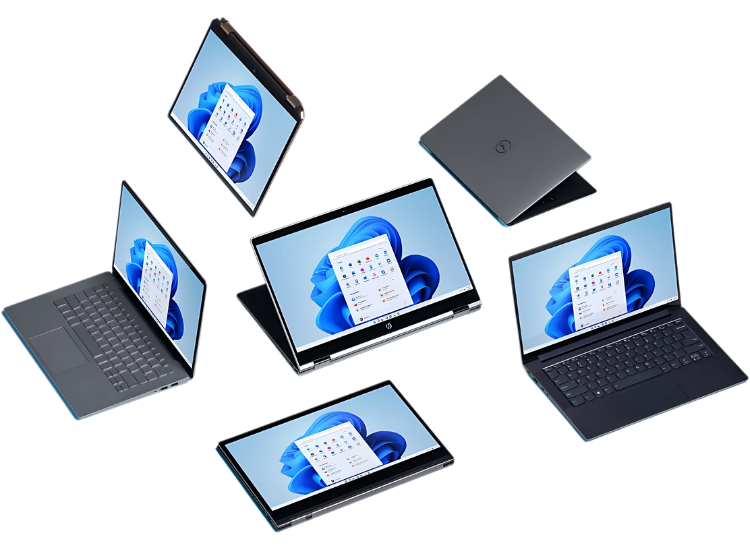
For organizations managing older fleets of computers, buying new Windows 11-compatible hardware is often the smartest move.
Advantages of replacing devices
- Security by design: New processors feature built-in protections like virtualization-based security and memory integrity.
- Improved performance: Modern PCs with SSDs and DDR4/DDR5 RAM increase productivity and reduce downtime.
- Lower operational costs: Less maintenance, fewer repairs and higher energy efficiency.
Best suited for
- Businesses seeking long-term IT stability.
- Users planning to keep their next computer for at least 5–7 years.
- Organizations deploying cloud-based or AI-powered applications that require modern hardware.
5. Explore Linux or Cloud-Based Solutions
If you’re not locked into Microsoft ecosystems, there are alternative operating systems and deployment models to consider if you’re unable to upgrade to Windows 11 or unsure how to upgrade—
Linux distributions (Ubuntu, Linux Mint, Fedora)
- Run efficiently on older devices.
- Free to install and supported by active communities.
- Good for software development, browsing and productivity tools like LibreOffice.
Cloud desktops (Azure Virtual Desktop, Microsoft 365)
- Stream Windows and applications to any device, even low-power hardware.
- Centralized management for IT administrators.
- Great for remote work and hybrid IT environments.
These approaches extend hardware life while still maintaining modern security standards.
Legal and Market Pressures Add Complexity
A lawsuit filed in August 2025 claims Microsoft ended Windows 10 support early to sell new AI PCs and drive Windows 11 adoption. While the case is ongoing, it highlights user frustration and the environmental impact of forced upgrades.
This legal backdrop makes planning your IT infrastructure transition even more urgent. Businesses cannot afford to wait for courtroom decisions to dictate security strategy.
From audits to full migrations, we will guide you

How to Choose the Right Path Forward
Before acting, take these steps-
- Audit your hardware and software assets. Identify which PCs qualify for Windows 11.
- Determine mission-critical applications. Ensure compatibility with your future platform.
- Assess compliance requirements. Unsupported systems could breach data protection standards.
- Plan your timeline now. Avoid price spikes, hardware shortages and last-minute IT emergencies.
We help businesses like yours stay secure and efficient with our IT Audit and Consulting Services at TECHOM Systems-
- Identify upgrade-ready systems.
- Evaluate the cost of new devices vs. extended support.
- Build a transition strategy that fits your business goals.
- Address security vulnerabilities before October 2025 arrives.
Quick Comparison of Your Options
Path | Cost | Security | Best Use Case |
ESU (Free/Paid) | Low to moderate | Temporary secure | Short-term planning period |
Upgrade to Win 11 | Low (if compatible) | Long-term secure | Modern hardware ready now |
Stay on Win 10 | None upfront | Very risky | Not recommended |
New PC purchase | High upfront | Long-term secure | Enterprise stability and performance |
Linux / Cloud desktops | Low to moderate | Secure (with setup) | Cost-efficient for older hardware |
The Clock Is Ticking, Act Before October 2025
Microsoft has already begun full-screen upgrade prompts urging Windows 10 users to take action. Delaying your decision may lead to higher costs, greater risk and rushed IT deployments.
By acting now, you can
- Enroll in Extended Security Updates without issue.
- Budget for new devices before prices rise.
- Transition smoothly to Windows 11 or alternative solutions.
- Keep your data safe, compliant and productive.
Upgrade to Windows 11: FAQ
What advantages does Windows 11 offer over Windows 10?
Windows 11 provides a modern interface and productivity tools designed for hybrid work environments. It improves multitasking with Snap Layouts, virtual desktops and Microsoft Teams integration, helping users get more done efficiently. With enhanced security, faster updates and support for AI-powered applications, Windows 11 is the ideal choice for organizations planning to upgrade from Windows 10 as Windows 10 support ends. Learn more about Windows 11 features.
Is upgrading from Windows 10 to Windows 11 free?
Yes, the Windows 11 upgrade is free for eligible Windows 10 devices. Keep in mind that the download size is large and internet providers may charge fees over metered connections. Devices must meet Windows 11 minimum system requirements and some Windows 10 features may not be available in Windows 11. Check full Windows 11 specs and requirements.
When will my Windows 10 device be eligible to upgrade to Windows 11?
Windows Update automatically checks if your Windows 10 device meets Windows 11 minimum system requirements. Once verified, you’ll be notified that the upgrade is ready for installation. You can also manually check eligibility using the PC Health Check app. Ensuring your device is ready now helps plan ahead as Windows 10 support ends.
Will my files be safe when upgrading to Windows 11?
During a Windows 11 upgrade, your files and apps are generally retained. However, Microsoft recommends backing up important data before upgrading to avoid any potential loss. If your files are already synced with OneDrive, no additional backup may be necessary. Proper preparation ensures a smooth upgrade from Windows 10 to Windows 11.
How can I prepare my device for Windows 11?
To prepare for a Windows 11 upgrade:
- Decide which device will run Windows 11.
- Sign in to Windows 10 using your Microsoft account.
- Back up important files to OneDrive or an external drive.
- Free up disk space if storage is low.
Following these steps ensures your upgrade is smooth, secure and compliant with Windows 11 minimum system requirements. See full guidance on preparing for Windows 11.
What are the Windows 11 minimum system requirements?
To upgrade from Windows 10 to Windows 11, your device must meet these minimum system requirements:
- 64-bit compatible processor
- 4 GB RAM or more
- 64 GB storage or more
- UEFI firmware with Secure Boot
- TPM version 2.0
- DirectX 12 compatible graphics with WDDM 2.x driver
Devices not meeting these requirements may be ineligible for the Windows 11 free upgrade.
Need help building your migration plan?
TECHOM Systems provides end-to-end IT audits, consulting and migration services to help organizations like yours upgrade from Windows 10 to Windows 11 securely and move forward without disruption.
With Windows 10 support ending soon, your deadline is approaching fast. Ready to upgrade to Windows 11, or need more than a quick check?
Get a full IT Audit Consulting Services of your business environment to identify risks, improve efficiency and maintain uninterrupted operations with us at TECHOM Systems.

A results-driven content strategist and IT writer with over 7 years of experience simplifying complex tech concepts into clear, actionable insights. Specialising in cloud computing, cybersecurity, and enterprise IT trends, he crafts content that bridges the gap between technical depth and business value.