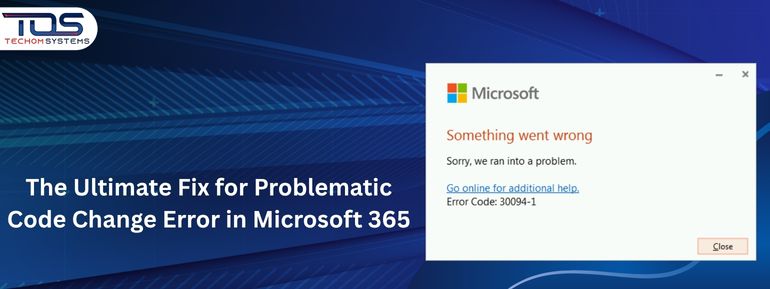
Microsoft 365 is a daily essential for millions of users, whether you are working on spreadsheets in Excel, drafting reports in Word or catching up on emails in Outlook. But every now and then, things go sideways. One common issue that’s been frustrating users is the problematic code change error in Microsoft 365.
It usually pops up without warning and prevents you from using your Office apps properly. Do you know what the worst part is? It does not tell you much about what went wrong.
If this error has disrupted your workflow, do not worry, you are not alone and you are not stuck. In this guide, we will walk you through simple, step by step solutions to fix this error whether you are using Windows 10 or a newer version.
Understand The Problematic Code Change Error In Microsoft 365
The problematic code change error in Microsoft 365 is a system level issue that occurs when Office apps fail to launch or function correctly due to disrupted updates or file conflicts. This typically happens when Microsoft 365 tries to apply changes but encounters a problem with the software’s code or configuration.
It is commonly seen on Windows 10 and may be caused by incomplete installations, outdated components or interference from other software. In Windows 10 what you need to know is that this error often results from a corrupted file or failed update, but the good news is, it can usually be resolved with the right troubleshooting steps.
Don’t let code change errors disrupt your workflow in Microsoft 365. Contact TECHOM Systems now for fast, reliable solutions and seamless performance! Book a free consultation now..

Why Does This Happen?
It usually shows up because something got in the way of an update or change. This could be due to system conflicts, damaged files, or previous Office versions interfering with the latest updates. When Microsoft 365 cannot complete its changes properly, it blocks access to prevent further issues. If you’re wondering how to fix problematic code change error in Microsoft 365, understanding these root causes is the first step. Here are the most common reasons:
- A recent Microsoft 365 update did not install properly
- Old versions of Office are still on your computer and causing conflicts
- Your system files or registry entries are broken
- Permissions or antivirus settings are blocking Office
- There was a power interruption during the update
Now let’s talk about how to fix problematic code change error in Microsoft 365 using methods that actually work.
How To Fix The Error (Step by Step)
These fixes are arranged from quickest to most advanced. Try them in order; one of them is likely to work for you. Starting with simple solutions can often save you time and effort, especially if the issue is minor. If those do not help, the later steps will guide you through more in-depth troubleshooting to fully resolve the error and get Microsoft 365 running smoothly again.
Use The Quick Repair Option
Microsoft built a repair tool right into your system.
How to do it:
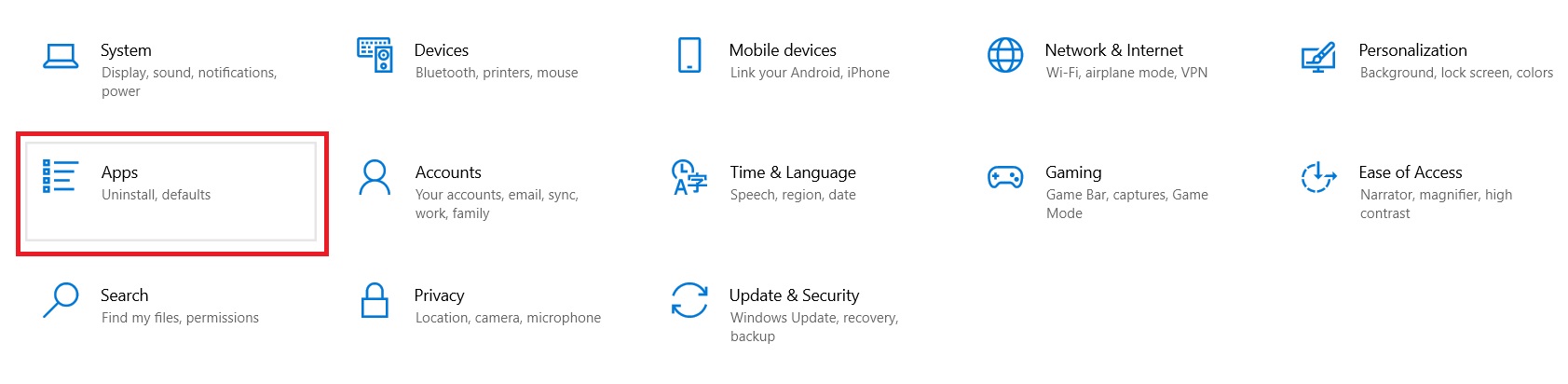
- Press Windows + I to open Settings
- Go to Apps > Installed Apps
- Scroll to Microsoft 365 and click Modify

- Select Quick Repair and click Repair
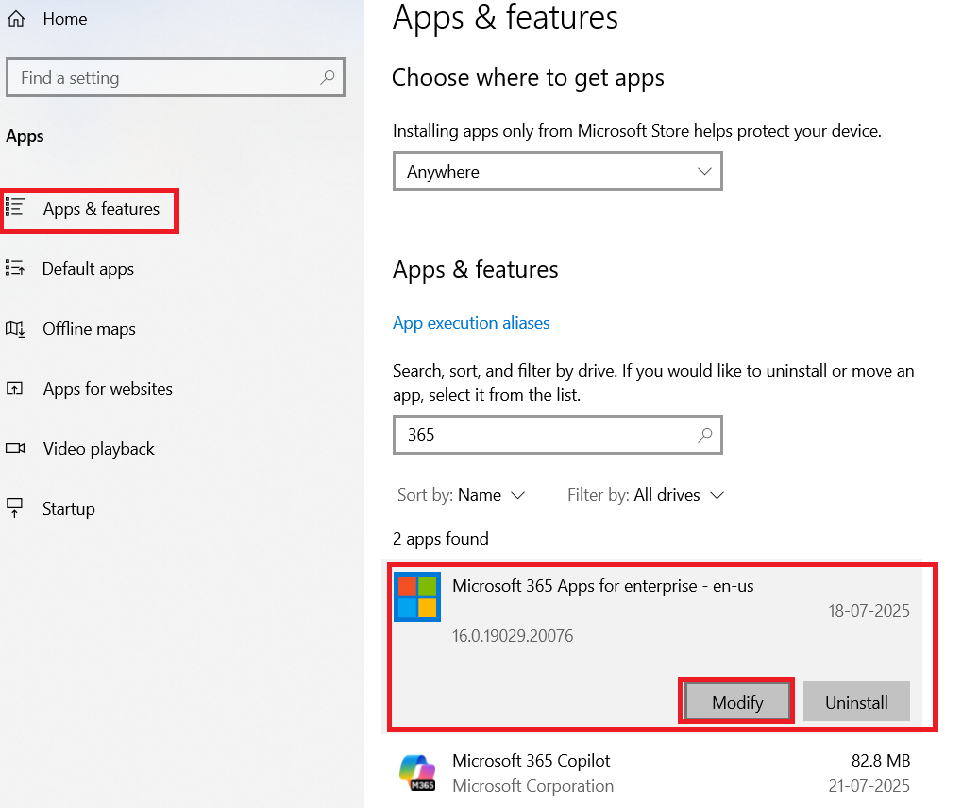
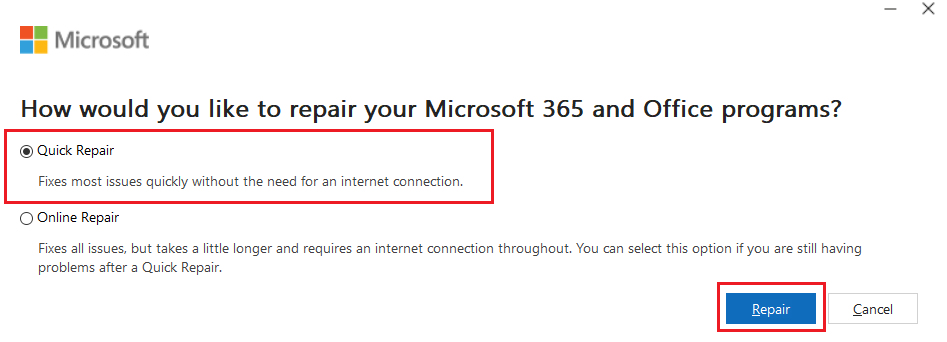
This takes just a few minutes and fixes most small issues. If the error is still there, move on to the next fix.
Try The Online Repair
If the Quick Repair does not solve it, do the Online Repair. It is more thorough but takes a bit longer.
Steps:
- Repeat the steps above
- This time, select Online Repair
- Follow the prompts
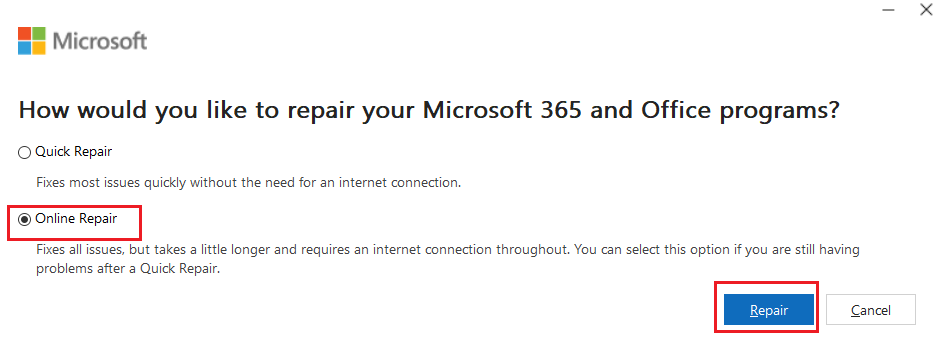
It will reinstall all Office files without deleting your documents. This often fixes the error for good.
Uninstall Old Versions Of Office
If you have ever had an older version of Office (like Office 2010 or 2016), it might be conflicting with Microsoft 365.
To check:
- Open the Control Panel
- Click Programs > Programs and Features
- Look for any old Office versions
- Right click and choose Uninstall
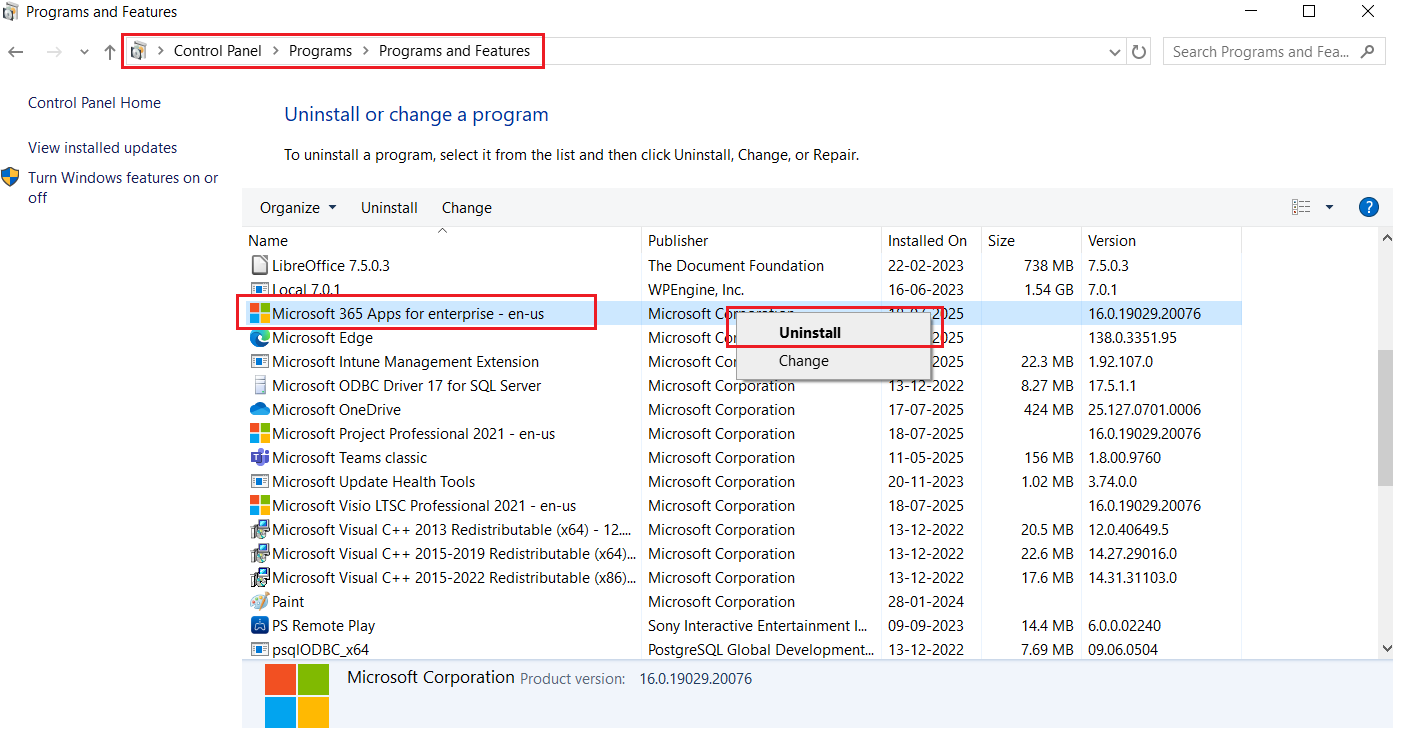
After this, restart your computer and open Microsoft 365 again.
Use Microsoft’s Support and Recovery Assistant (SaRA)
Microsoft has a free tool called Support and Recovery Assistant that can diagnose and fix common problems for you.
How to use it:
- Download the tool from Microsoft’s official site
- Open it and select Office or Microsoft 365
- Follow the instructions on screen
At TECHOM Systems, we use this tool regularly to help customers who ask how to fix Microsoft 365 error without doing a full reinstall.
Update Windows
Sometimes, Windows itself is the problem. Outdated files can cause Office to crash or stop working properly.
To update:
- Go to Settings > Update & Security
- Click Check for Updates
- Install all available updates
- Restart your computer
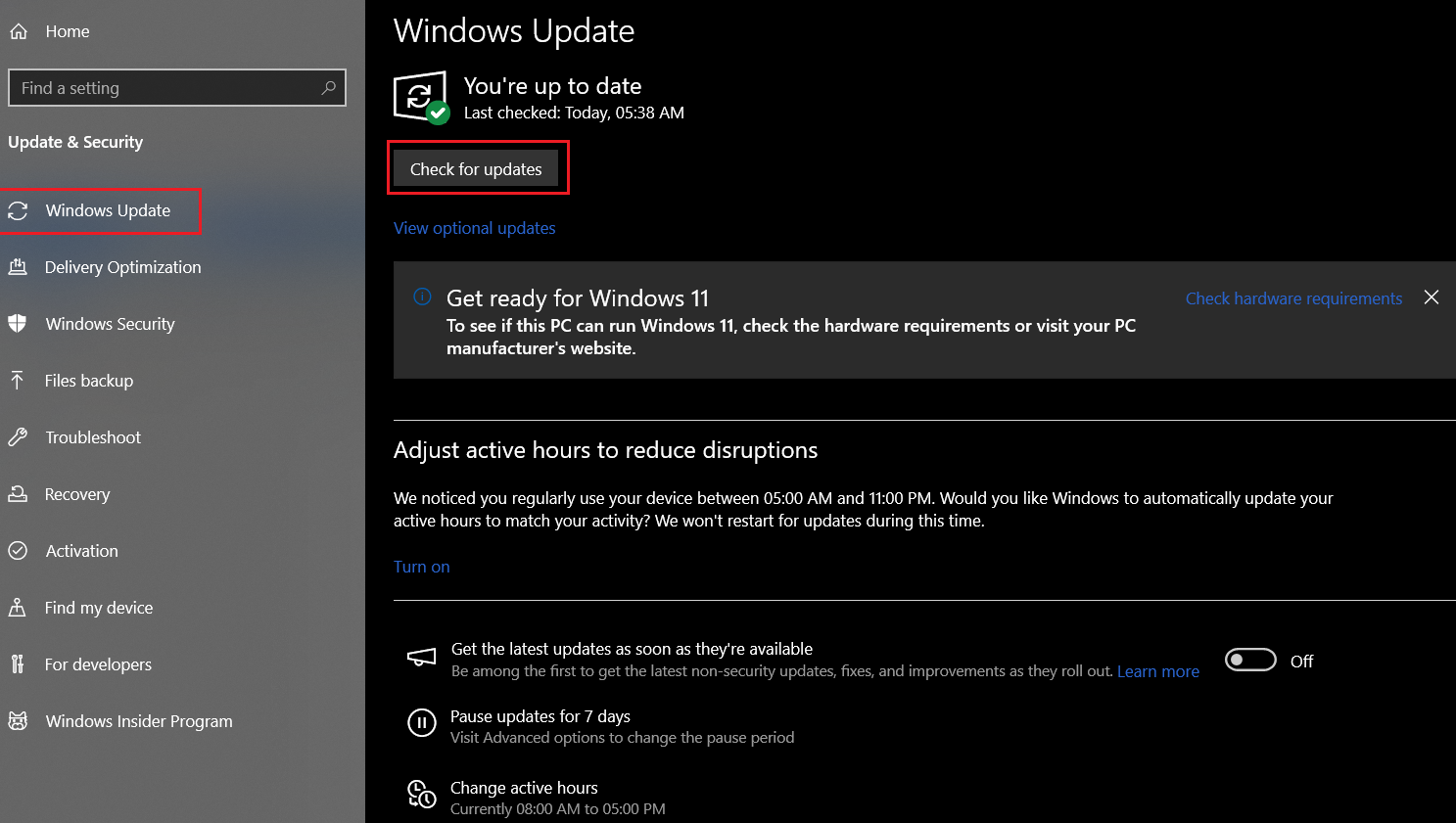
This small step often prevents and fixes several Microsoft 365 errors.
Completely Uninstall And Reinstall Microsoft 365
Still not working? It is time for a clean slate.
Steps:
- Download the Microsoft Support Uninstall Tool
(search for “Microsoft Office Uninstall Support Tool”) - Run it to remove all traces of Microsoft 365
- Restart your PC
- Go to office.com, sign in and reinstall Office
This full reset clears everything out, including whatever caused the error in the first place.
Run Microsoft 365 Apps As Administrator
Sometimes, the error occurs because Microsoft 365 does not have the necessary permissions to apply changes or access protected system files. Running the app with administrator privileges can help bypass these restrictions.
How to do it:
- Close all Office apps completely.
- Right click on the Office app you are trying to open (e.g., Word or Excel).
- Click Run as administrator.
- If prompted by User Account Control, click Yes.
Once opened, check if the error appears again. If not, it was likely a permissions issue. You can repeat this step for other Office apps as needed.
Facing issues with code change errors in Microsoft 365? Contact TECHOM Systems today for expert solutions and get your Microsoft 365 running smoothly again! Book a free consultation now..
Tips To Prevent Microsoft 365 Error In The Future
Once you have fixed the problem, here is how to make sure it does not happen again: Taking a few simple precautions can go a long way in keeping Microsoft 365 stable and error-free. Many issues, including the problematic code change error in Microsoft 365, can be avoided by keeping your system healthy, updated and well maintained. Let’s look at a few smart habits to follow going forward:
- Do not install multiple versions of Office
- Always shut down your PC properly
- Keep Microsoft 365 and Windows up to date
- Run the repair tool once a month
- Avoid third party Office plugins unless they are verified
At TECHOM Systems, we recommend these best practices to both home users and businesses to keep their Office apps running smoothly.
Free Guide For You: Set Up Multi Factor Authentication For Microsoft 365
Why TECHOM Systems Is Your Go-To Solution For Microsoft 365 Errors
When facing issues like the problematic code change error in Microsoft 365, you need more than guesswork, you need support from an expert like TECHOM Systems. With years of experience resolving Microsoft 365 errors on Windows 10 and other platforms, our team delivers quick, effective solutions tailored to your needs.
At TECHOM Systems, we make tech support simple and stress free. From fixing problems to helping you prevent them, our certified experts offer step by step guidance and remote help to keep you running smoothly. When you need trusted and efficient Microsoft 365 support, we are here for you.
Frequently Asked Questions (FAQs)
#1. How to fix office 365 activation error?
To fix Office 365 activation error, sign in with the correct account, check your subscription status, run the Office Activation Troubleshooter and restart your device.
#2. How to troubleshoot Microsoft 365 issues?
To troubleshoot Microsoft 365 issues, restart your device, update Office, run the repair tool, check for Windows updates and disable conflicting add-ins.
#3. How to fix an update error?
To fix an update error, restart your PC, check your internet, run Office Repair and ensure Windows and Microsoft 365 are up to date. Reinstall if needed.
Conclusion
Dealing with the problematic code change error in Microsoft 365 can be frustrating, but with the right steps, it is completely manageable. In this blog, we broke down what the error means, why it happens, especially on Windows 10 and walked through simple and advanced fixes to get your Office apps running smoothly again. We also shared key prevention tips to help you avoid the issue in the future. And if things still feel complicated, remember that TECHOM Systems is here to provide expert support whenever you need it.
Struggling with code change errors in Microsoft 365? Contact TECHOM Systems and let us troubleshoot and resolve the issue quickly. Book your free consultation today!

Technical Specialist with 10+ years of experience in IT solutions, data engineering and AI-driven automation. At TECHOM Systems, she focuses on delivering secure, scalable and business aligned technology strategies. She applies advanced technical skills to develop scalable solutions and integrate emerging technologies for optimized digital workflows.